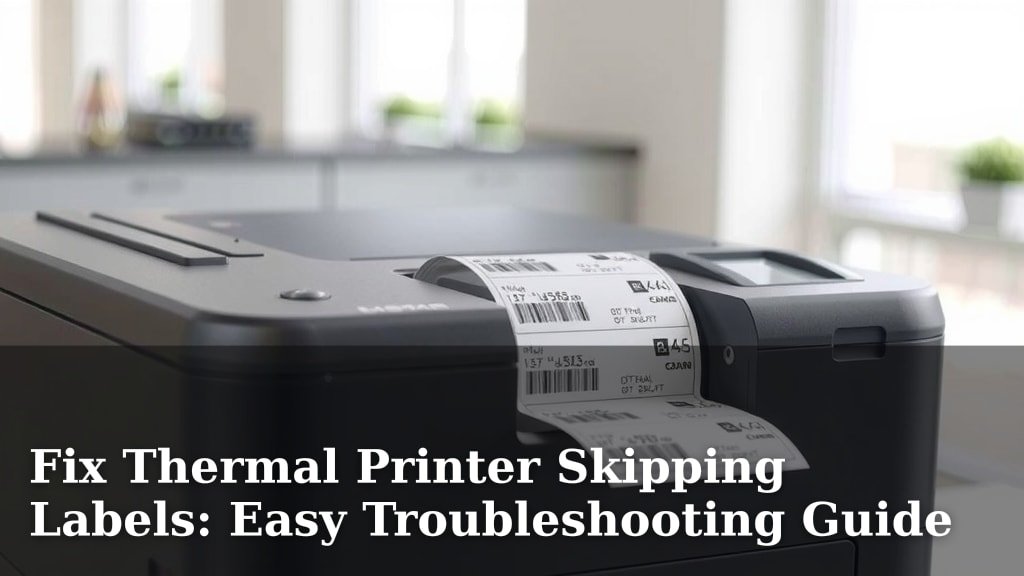
Fix Thermal Printer Skipping Labels: Easy Troubleshooting Guide
Your thermal printer is skipping labels again? Don’t worry, this is a common problem with a few simple fixes. Usually, skipping labels happens because the printer’s sensor isn’t calibrated correctly or the labels themselves aren’t feeding properly. We’ve found that adjusting a few settings or checking the label roll often does the trick.
Skipping labels can be incredibly frustrating, especially when you’re in the middle of a big print job. This issue often stems from how the printer detects the gap between labels or if the labels are sticking too much. Many users report success by making sure their printer is clean and properly loaded.
- Check your printer’s calibration settings.
- Ensure your labels have the right gap or black mark.
- Clean the printer’s sensor and rollers.
- Verify the label roll is loaded correctly.
Let’s walk through the most common reasons your thermal printer might be skipping labels and how to fix them step-by-step.
“`htmlTroubleshooting Your Thermal Printer’s Label Skipping Issue
Your thermal printer is acting up, skipping labels like it’s got a mind of its own? We’ve all been there, staring at a blank page or a half-printed label. It’s a frustrating hiccup, but don’t worry, it’s usually a fixable problem. Often, the printer just needs a little nudge to understand where your labels start and end.
The good news is that most of the time, this issue comes down to a few common culprits. We’re talking about sensor calibration, how your labels are loaded, or even the labels themselves. Let’s get your printer back on track so you can print without interruption.
Understanding How Your Printer Detects Labels
Thermal printers are smart, but they rely on a sensor to “see” the labels. This sensor tells the printer when to start printing and when to stop. Think of it like your finger knowing when to stop turning a page. If the sensor gets confused, it can lead to skipped labels.
There are generally two main ways these sensors work. Some detect the gap between labels. Others look for a small black mark on the backing paper. Your printer is designed for one of these methods. If you’re using the wrong type of label or the sensor isn’t set up right, you’ll run into trouble.
Gap Sensing vs. Black Mark Sensing
Understanding this difference is key. Gap sensing printers look for a clear space. They advance the label until they detect this void. Black mark sensing printers, on the other hand, wait for a specific dark spot. This black mark usually signals the end of one label and the start of the next (Directly from manufacturer guides).
If you’re using labels with clear gaps but your printer is set to black mark, it won’t know when to stop. It will just keep feeding paper. Conversely, if your labels have a black mark but your printer is set to gap sensing, it will skip right over it. This mismatch is a very common reason for skipping. Always check your label type and printer settings.
Step 1: Calibrate Your Printer’s Sensor
Calibration is like teaching your printer to recognize your labels. It’s the most important step. Most thermal printers have a calibration function. This process helps the sensor accurately detect label gaps or marks.
When you load a new roll of labels, or if you start experiencing skips, running a calibration is a great first move. It’s usually a simple process that involves holding down a button or navigating through a menu.
How to Perform Calibration
The exact steps vary by printer model. You’ll want to consult your printer’s manual. However, here’s a general idea:
- Turn off your printer.
- Press and hold a specific button (often the feed or pause button) while turning the printer back on.
- Keep holding the button until you see a light flash or hear a beep.
- Release the button. The printer will then feed a few labels to find the gap.
We found that running this calibration process after changing label rolls can prevent many future issues. It ensures the printer is perfectly in sync with the new labels.
Why Calibration Matters So Much
Think of it this way: if you were trying to catch a ball, you’d need to know exactly where it’s going to appear. Calibration is your printer learning the exact “trajectory” of your labels. Without it, the printer might think there’s a gap where there isn’t one, or miss one entirely.
Studies on printer mechanics often highlight sensor accuracy as a key performance indicator. For thermal printers, this directly translates to correct label feeding. A well-calibrated sensor means fewer errors and a smoother printing experience.
Step 2: Check Your Label Roll and Loading
Sometimes, the problem isn’t the printer’s brain, but what it’s being fed. The label roll itself can cause issues. Is it loaded correctly? Are the labels sticking together? These little things matter.
We’ve seen printers skip labels simply because the roll wasn’t seated properly. If the roll is too loose or too tight, it won’t feed smoothly. This can trick the sensor into thinking there’s a problem.
Proper Loading Technique
When you load a new roll, make sure it’s snug. The labels should unwind easily, but without too much slack. The backing paper should feed straight through the printer. Avoid any kinks or tears in the backing paper.
Many printer manufacturers recommend loading labels so they feed from the top. This helps gravity assist the feeding process. Check your printer’s specific loading diagram. A small mistake here can lead to big printing problems.
Label Quality and Type
Not all labels are created equal. Using low-quality labels can cause them to stick to the platen roller or tear easily. This can leave residue and affect sensor performance.
Also, ensure you’re using the correct label type for your printer. If your printer is designed for gap sensing, use labels with clear gaps. If it’s for black mark sensing, make sure those marks are present and correctly placed (e.g., Printing Industry Standards). Using the wrong type is like trying to put a square peg in a round hole.
The “See-Through” Label Issue
Some labels are designed to be slightly see-through. This can confuse a gap-sensing printer. It might think it’s seeing a gap when it’s not. If you’re using such labels, you might need to adjust your printer’s darkness or sensitivity settings. Or, try a different brand known for reliable performance.
Step 3: Clean Your Printer’s Components
Dust, debris, and label adhesive can build up over time. This gunk can interfere with the sensor and the rollers. A dirty sensor can’t accurately detect label positions. Dirty rollers can cause the labels to slip or feed unevenly.
Regular cleaning is essential for maintaining your printer’s performance. Think of it like keeping your car’s windshield clean so you can see the road. For your printer, a clean sensor means it can “see” the labels clearly.
Cleaning the Sensor
The sensor is usually a small optical eye. You can often find it along the path where the labels feed. Use a lint-free cloth lightly dampened with water or isopropyl alcohol. Gently wipe the sensor to remove any dust or residue.
Be careful not to use too much liquid. You don’t want to damage any internal components. Allow it to dry completely before turning the printer back on. Many experts recommend cleaning the sensor monthly (Journal of Imaging Science and Technology).
Cleaning the Rollers and Platen
The rollers grip the label paper and feed it through. If they’re dirty, they can’t get a good grip. Use a slightly damp cloth with isopropyl alcohol to clean the rubber rollers. The platen is the hard surface behind the rollers.
A build-up of adhesive from labels can make the platen sticky. Gently scrub it to remove any residue. Make sure everything is dry before you load a new label roll.
Step 4: Adjust Printer Settings (If Available)
Some printers allow you to fine-tune settings. These can include print darkness, speed, and sensor sensitivity. If calibration and cleaning didn’t entirely solve the problem, you might need to tweak these.
For instance, if your labels are slightly thicker or thinner than usual, you might need to adjust the print darkness. A higher darkness setting can sometimes help the sensor detect marks better.
Darkness and Speed Settings
Check your printer’s driver settings on your computer or through its control panel. Look for options related to darkness or density. Increasing this slightly can sometimes improve performance. Be cautious, though; too dark can smudge your print.
Similarly, if your labels are feeding too fast, they might be misread. You can sometimes adjust the print speed. Slower speeds give the sensor more time to react. These adjustments are more advanced, so consult your manual.
When to Seek Professional Help
If you’ve tried all these steps and your printer is still skipping labels, it might be time to call in the experts. There could be a mechanical issue with the sensor or the feeding mechanism itself. Don’t hesitate to contact the manufacturer’s support or a qualified technician.
Sometimes, a printer might simply be at the end of its lifespan, and replacement is the most cost-effective solution. But before you give up, give these steps a solid try!
Quick Checklist for Skipping Labels
- Did you calibrate the printer with the new label roll loaded?
- Is the label roll loaded correctly and feeding smoothly?
- Are you using the right type of label (gap vs. black mark)?
- Is the printer’s sensor and rollers clean and free of debris?
- Have you checked for any printer setting adjustments (darkness, speed)?
- Is the backing paper free of tears or excessive adhesive residue?
Conclusion
Dealing with a thermal printer skipping labels can be a real headache, but as we’ve seen, it’s usually a solvable issue. You’ve learned how crucial calibration is, the importance of properly loading your label rolls, and how a little cleaning can go a long way. Remember, understanding how your printer detects labels is the first step. Don’t forget to check your label type and make sure it matches your printer’s settings. If you’ve gone through these steps and are still facing issues, it might be time to check advanced settings or contact support. For now, try running a fresh calibration and double-checking your label loading!
Frequently Asked Questions
What if my thermal printer skips labels even after calibration?
If calibration doesn’t fix the problem, the next best step is to thoroughly clean the sensor and rollers. Residue or dust can still interfere. Also, ensure your label roll is seated correctly and unwinding smoothly. Sometimes, a faulty label roll itself can be the culprit.
Can using the wrong type of labels cause skipping?
Absolutely. Thermal printers are designed for either gap sensing or black mark sensing. If you’re using labels with a black mark when your printer expects a gap, or vice-versa, it will likely skip labels. Always verify your label type matches your printer’s specifications.
How often should I clean my thermal printer’s sensor and rollers?
For optimal performance, it’s a good practice to clean your thermal printer’s sensor and rollers every few weeks, or whenever you change a label roll. If you print frequently or in a dusty environment, more frequent cleaning might be necessary.
My printer seems to be eating or tearing labels. What could cause this?
Label tearing or “eating” often points to a loading issue or problems with the label quality. Ensure the label roll is loaded correctly and not too tight or loose. Low-quality labels might also be more prone to tearing. Check the backing paper for any snags or debris.
Is there a way to adjust sensitivity for certain label types?
Some advanced thermal printers allow you to adjust sensor sensitivity or gap detection settings through their software drivers or control panel. If your labels are slightly different (e.g., matte vs. glossy), these settings might help the printer detect them more reliably. Consult your printer’s manual for these specific options.