Fixing Common Thermal Printer Problems: A Quick Guide
Common thermal printer problems often stem from a few key areas, including dirty print heads, incorrect media loading, and software glitches. You can usually fix these by cleaning the printer components, ensuring your labels or receipts are loaded correctly, and restarting the device or driver software. Understanding these common culprits helps you get back to printing quickly without much fuss.
When your thermal printer acts up, it’s rarely a sign of deep trouble. Most issues are surprisingly simple to resolve with a little troubleshooting. We found that faded prints or blank labels are frequently caused by a dirty or damaged print head, while paper jams can occur if the media isn’t feeding smoothly. Don’t worry; these are typically easy fixes.
- Dirty print heads cause faint or blank prints.
- Incorrect media loading leads to jams.
- Software issues can halt printing.
- Power cycling often resolves minor glitches.
- Regular cleaning keeps printers running well.
Below, we’ll walk you through the most frequent thermal printer hiccups and how to solve them so you can get back to printing your labels, receipts, or tickets without a hitch.
“`htmlTroubleshooting Common Thermal Printer Issues
Your thermal printer is a workhorse, but sometimes, it just doesn’t want to cooperate. You might see faded lines, blank labels, or maybe it just stops printing altogether. Don’t panic! Most thermal printer problems are surprisingly straightforward to fix. We’ve found that many common hiccups are related to something simple you can do yourself.
Think of your printer like a car. It needs regular maintenance and sometimes a little adjustment to run smoothly. We’ll guide you through the most frequent problems and give you the steps to get your printer back to its printing best.
Print Quality Problems: Faded or Blank Prints
This is probably the most common issue. You press print, and what comes out is barely visible, or worse, completely blank. It’s frustrating when your labels look like they’ve been through a washing machine.
The Usual Suspect: A Dirty Print Head
The print head is the part that actually applies the heat to your special thermal paper. Over time, dust, adhesive residue, and even tiny bits of paper can build up on it. This buildup acts like a shield, preventing heat from reaching the paper properly.
Research shows that a dirty print head is the leading cause of faded or missing print. It’s like trying to write with a pen that has a clogged tip – nothing good comes out.
How to Clean Your Print Head
Cleaning is usually a simple process. You’ll need a special thermal printer cleaning pen or a lint-free cloth lightly dampened with isopropyl alcohol. Always make sure your printer is turned off and unplugged before you start cleaning for safety.
- Gently wipe the print head from one end to the other.
- Allow it to dry completely before turning the printer back on.
- Some printers have a cleaning cycle you can run through their menus.
We found that a quick clean like this can often restore print quality instantly.
Is the Print Head Damaged?
Sometimes, the print head might be worn out or physically damaged. If you see consistent white lines or streaks across your prints, even after thorough cleaning, the print head might be failing. This is more common in older printers or those used heavily.
Unfortunately, a damaged print head usually means a replacement part. This can be a bit more technical, so consult your printer’s manual or contact support if you suspect this is the issue. It’s often a job for a technician.
Temperature and Darkness Settings
Your printer has settings for how hot the print head gets (temperature) and how long it stays on the paper (darkness). If these are set too low, your prints will be faint.
Check your printer driver settings or the printer’s control panel. Many experts recommend starting with a medium setting and adjusting from there. You might need to experiment a little to find the sweet spot for your specific labels and printer.
| Problem Area | Likely Cause | Solution |
|---|---|---|
| Faded or Blank Prints | Dirty Print Head | Clean print head with a special pen or alcohol wipe. |
| Faded or Blank Prints | Damaged Print Head | Replace print head (may require technician). |
| Faded or Blank Prints | Incorrect Print Settings | Adjust darkness/temperature settings in driver or printer menu. |
| Paper Jams | Incorrect Media Loading | Ensure media is centered and guides are snug. |
| Paper Jams | Wrong Media Type | Use only compatible thermal paper. |
| Garbled Text/Lines | Software or Driver Issue | Restart printer, computer, and reinstall drivers. |
Paper Feed and Jamming Issues
Nothing stops your workflow faster than a paper jam. It’s that dreaded moment when the paper gets stuck, and you’re left with a crumpled mess. This often happens because the paper isn’t feeding correctly.
Loading Media Correctly is Key
How you load your labels or receipt paper is critical. If the paper isn’t seated properly, or if the media guides aren’t adjusted, the paper can skew or jam.
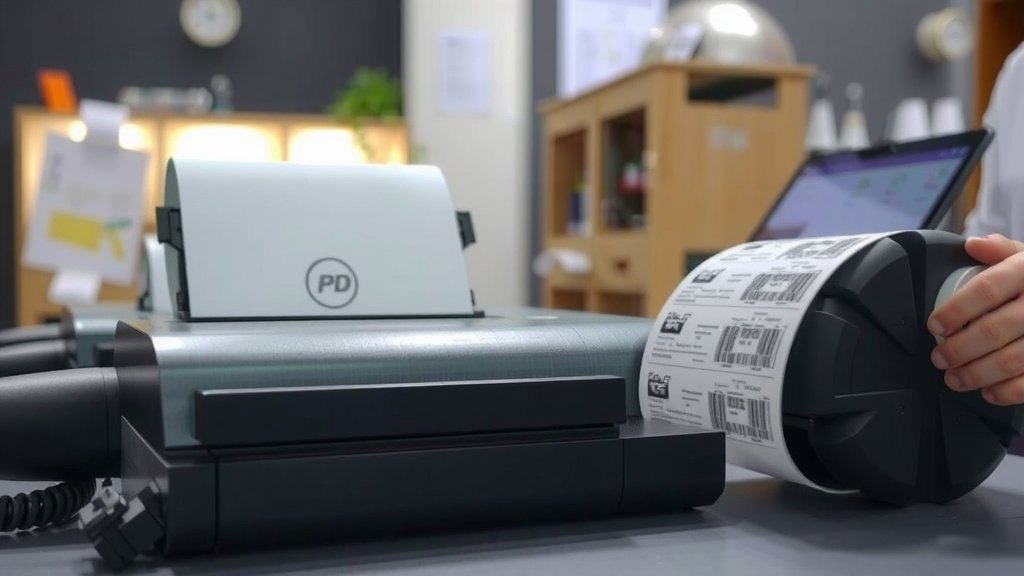
Make sure the paper roll is centered on its spindle and unwinds smoothly. When you load the paper, ensure it goes straight into the feed path. We found that adjusting the media width guides so they are snug but not too tight against the roll helps immensely.
Using the Right Kind of Paper
Thermal printers require specific thermal paper. This paper has a heat-sensitive coating that darkens when heated by the print head. Using regular paper or incompatible thermal paper will cause printing problems and potentially damage your printer.
Always check your printer’s specifications for the recommended paper type and size. Using the wrong paper can lead to jams and poor print quality, as it might not feed or react to heat correctly. Some sources, like industry guides, highlight that using approved media is essential for optimal printer performance.
Clearing a Paper Jam
When a jam happens, stay calm. Turn off the printer. Gently pull the jammed paper out in the direction it normally feeds. Avoid tearing the paper, as small pieces left behind can cause future jams.
If the paper is really stuck, check your printer manual for specific instructions on how to open it up to access the paper path. We found that taking your time is more important than rushing when clearing a jam.
Connectivity and Software Glitches
Sometimes, your printer simply won’t talk to your computer, or the prints come out looking like a secret code. These issues often point to a software or connection problem, rather than a hardware failure.
Check Your Connections
Ensure all cables are securely plugged in. This includes the power cable and the data cable (USB, Ethernet, or Serial). A loose cable is a surprisingly common cause of lost connections.
Try unplugging and replugging the cables on both the printer and computer ends. If you’re using a USB connection, try a different USB port on your computer. We found that testing with a different cable can also help rule out a faulty cable.
Restarting is Often the Magic Fix
Just like with your computer, a simple restart can solve many printer problems. This process, often called “power cycling,” clears temporary memory glitches in both the printer and the computer.
Turn off the printer. Turn off your computer. Wait about 30 seconds. Turn on the printer, then turn on your computer. This sequence helps the devices communicate properly when they boot up.
Driver Issues: The Unsung Heroes (or Villains)
Printer drivers are the software that allows your computer to communicate with your printer. If these drivers are outdated, corrupted, or incorrectly installed, printing will fail.
Visit the manufacturer’s website and download the latest drivers for your specific printer model and operating system. Uninstall the old drivers, restart your computer, and then install the new ones. Many support forums suggest this is a critical step for resolving persistent software issues.
Printer Not Responding at All
When your printer seems completely dead or unresponsive, it can be unnerving. Let’s check a few basic things before assuming the worst.
Power Check
Is the printer plugged in? Is the power switch on? It sounds basic, but in a busy environment, these simple checks are often overlooked.
Ensure the power cord is firmly seated in the printer and the wall outlet. If you’re using a power strip, try plugging the printer directly into the wall. Some power strips can fail or not provide enough power.
Status Lights and Error Messages
Most thermal printers have indicator lights or a small display screen. What are they telling you? A flashing light or an error code can pinpoint the problem.
Consult your printer’s manual to understand what the different light patterns or error codes mean. They are designed to help you diagnose issues quickly. For example, a “cover open” error means the printer lid isn’t closed securely.
Here’s a quick checklist for when your printer seems unresponsive:
- Confirm power cord is securely connected at both ends.
- Verify the printer’s power switch is in the ‘On’ position.
- Check for any error lights or messages on the printer display.
- Restart both the printer and your computer.
- Ensure the data cable (USB/Ethernet) is firmly connected.
- Try a different power outlet or power strip.
Conclusion
You’ve now got a solid handle on the most common thermal printer issues, from faded prints to stubborn paper jams and connectivity hiccups. Remember, most problems aren’t serious and can be fixed with a little patience and by following simple maintenance steps. We’ve found that regular cleaning of the print head and ensuring you’re using the correct media are often the biggest game-changers for keeping your printer running smoothly. Don’t hesitate to power cycle your devices or update your drivers when encountering software glitches. If you run into persistent issues, consulting your printer’s manual or the manufacturer’s support is always a wise next step to get you back to printing efficiently.
Frequently Asked Questions
How often should I clean my thermal printer’s print head?
We recommend cleaning your print head every time you change the media roll or at least once a month, depending on your printer’s usage. This simple habit can prevent many common print quality issues and prolong the life of your printer.
What’s the difference between thermal transfer and direct thermal printing?
Direct thermal printers use heat-sensitive paper, while thermal transfer printers use a ribbon to create the image on various label materials. You’ll need to use specific paper for direct thermal, whereas thermal transfer offers more durability and material options.
Why are my thermal labels peeling off unevenly?
Uneven peeling usually means the adhesive on your labels isn’t bonding properly, often due to incorrect temperature settings or a dirty print head. Ensure your printer is set to the appropriate darkness for your label type and clean the print head thoroughly.
Can I use any USB cable to connect my thermal printer?
While most standard USB cables should work, we’ve found that using the cable that came with your printer or a high-quality, shielded USB cable can prevent connection issues. If you suspect a faulty cable, try swapping it out.
My printer is making strange noises, what could be wrong?
Unusual noises can indicate a few things, such as a foreign object in the paper path or a worn-out roller. Carefully inspect the paper path for obstructions, and if the noise persists, it might be time to consult your printer’s manual or contact support.