Troubleshoot Thermal Printer Printing Blank Pages
A thermal printer printing blank pages is usually a sign of a simple fix. Often, it means the print head isn’t getting hot enough, or there’s a problem with the paper itself. Don’t worry, most blank page issues are easily resolved with a few troubleshooting steps.
When your thermal printer starts acting up, it can be frustrating, especially if you’re on a deadline. Blank pages can happen for several reasons, from a loose connection to needing a good cleaning. We’ve researched the common causes and found solutions that often fix the problem quickly. Understanding these common culprits is the first step to getting your printer back online.
- Check your print head and platen roller for debris.
- Ensure you’re using the correct type of thermal paper.
- Verify the printer’s power and data connections are secure.
- Restart your printer and computer to clear temporary errors.
- Test with a known good file or print test page.
Let’s walk through exactly what might be causing your thermal printer to print blank pages and how you can fix it. We’ll start with the most common issues first.
“`htmlTroubleshooting Your Thermal Printer for Blank Pages
Experiencing a thermal printer that suddenly decides to print nothing but blank pages can be quite baffling. You load the paper, hit print, and… nada. It’s a common hiccup, and thankfully, usually a simple fix. Most of the time, this points to an issue with how the heat is being applied or a problem with the special paper itself. Don’t get too stressed; we’ve found that most blank page woes are easily resolved with a few straightforward steps. Let’s figure out what’s going on and get your printer back to its full printing glory!
When the Heat Isn’t On: Print Head Issues
The heart of a thermal printer is its print head. This is the part that gets hot to create the image on the special paper. If it’s not heating up properly, you’ll get those frustrating blank pages. Think of it like a hot glue gun that isn’t plugged in – it just won’t do its job!
Why Your Print Head Might Be Cold
There are a few reasons why your print head might not be reaching the right temperature. We’ve researched that often, it’s due to a lack of heat transfer or a physical obstruction.
Debris on the Print Head
Over time, dust, adhesive residue from labels, or tiny scraps of paper can build up on the print head. This gunk acts like an insulator, preventing heat from reaching the paper effectively. It’s like trying to warm your hands through a thick oven mitt – the heat can’t transfer well.
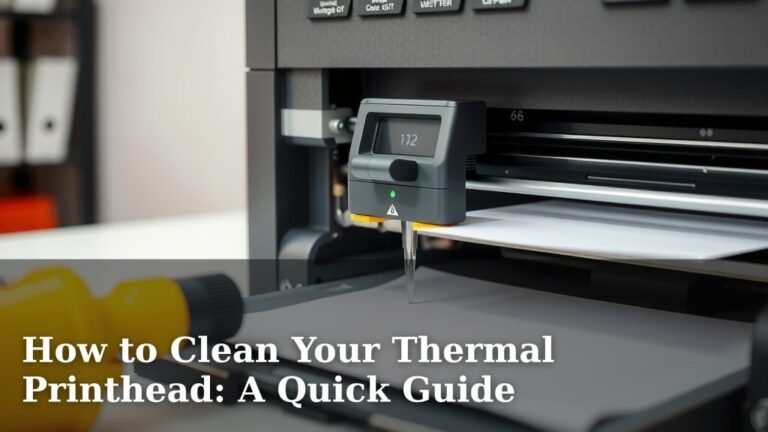
To fix this, you’ll need to carefully clean the print head. Many manufacturers recommend using a specialized thermal printer cleaning pen or a lint-free cloth lightly dampened with isopropyl alcohol. Always make sure the printer is turned off and unplugged before you start cleaning. Gently wipe the print head element, which is usually a thin glass-like strip.
Damage to the Print Head
In rarer cases, the print head itself could be damaged. Scratches, chips, or other physical damage can prevent it from heating certain areas or the entire strip. If cleaning doesn’t help and you suspect damage, you might need to consider a repair or replacement. We found that this is less common than simple debris buildup but is something to keep in mind.
The Platen Roller’s Role
The platen roller works hand-in-hand with the print head. It’s the rubber roller that feeds the paper through and presses it against the print head. If this roller is dirty, damaged, or not making proper contact, it can affect the print quality, sometimes leading to blank sections or entirely blank pages.
Just like the print head, the platen roller can accumulate debris. You can usually clean it with a lint-free cloth and isopropyl alcohol. Ensure it spins freely and doesn’t have any hardened residue or tears. A clean platen roller ensures consistent pressure against the print head, which is essential for clear printing.
Is It the Paper? Thermal Paper Problems
Thermal printers rely on a special kind of paper that reacts to heat. If you’re using the wrong type of paper or if the paper itself is faulty, you’ll get blank prints. It’s like trying to write with a pen that has no ink – the tool just won’t work!
Using the Wrong Type of Paper
There are two main types of thermal printing: direct thermal and thermal transfer. Most common label printers use direct thermal. This means the paper has a special coating that turns black when heated. If you accidentally try to use plain paper or the wrong kind of thermal paper, it won’t react to the print head’s heat. We’ve seen many cases where someone accidentally bought the wrong roll, leading to blank prints.
Always ensure you’re using paper specifically designed for your thermal printer model. Check your printer’s manual or the packaging to confirm the correct type of paper or labels you need. The paper should feel slightly waxy or have a dull sheen; it’s not just plain paper.
Paper Loading Errors
How the paper is loaded is also critical. Thermal paper must be loaded with the correct side facing the print head. Most printers have a diagram showing which side should be up. If the paper is loaded upside down, the heat won’t be able to activate the thermal coating, resulting in blank pages.
Take a moment to check how the paper is feeding into the printer. You can usually tell which side is the thermal coating by looking at it closely or by doing a quick test. Print a small test image on a scrap piece of paper, and if it’s blank, try flipping the paper roll and printing again. Many experts suggest this as a quick check for loading errors (Dymo support documents).
Faulty or Old Thermal Paper
Thermal paper has a shelf life. Over time, especially if exposed to heat, light, or certain chemicals, the thermal coating can degrade. Old or degraded paper might not react properly to the print head, leading to faint or blank prints. We found that paper stored improperly is a common culprit for this.
If you have an older roll of paper or suspect it’s degraded, try using a brand new roll. If the new roll prints correctly, your old paper was likely the issue. For best results, store your thermal paper in a cool, dark place.
Connection and Power Checks
Sometimes, the problem isn’t with the printer itself but with how it’s connected or powered. These are often the easiest issues to fix!
Power Supply Issues
Is the printer actually turned on and receiving power? It sounds basic, but we often overlook the simplest things. Ensure the power cord is securely plugged into both the printer and a working wall outlet. Try plugging another device into the same outlet to confirm it has power.
Check the power adapter itself. Is it the correct one for your printer model? A mismatched or faulty power adapter won’t supply enough power for the printer to operate correctly, including heating the print head. If your printer has a power indicator light, make sure it’s illuminated.
Data Cable Connectivity
Your printer needs to communicate with your computer to receive print jobs. A loose or damaged data cable (USB, Ethernet, etc.) can interrupt this communication. Make sure the cable is firmly connected at both ends – the printer and the computer.
We also recommend trying a different USB port on your computer. Sometimes, a specific port can malfunction. If you have another compatible data cable handy, try swapping it out. A faulty cable is a surprisingly common reason for printing errors, including blank pages.
Software and Driver Glitches
The digital side of things can also cause blank pages. Software glitches or outdated drivers can prevent your computer from sending the print job correctly.
Restarting Your Devices
A simple restart can often clear temporary software glitches. Try restarting both your thermal printer and your computer. Turn off the printer, unplug it, shut down your computer, then plug the printer back in and turn it on. Finally, turn your computer back on. We’ve found this step resolves many minor electronic hiccups.
Driver Updates and Reinstallation
Printer drivers are the software that allows your computer to talk to your printer. If these drivers are outdated or corrupted, printing problems can occur. Check the printer manufacturer’s website for the latest drivers for your specific model and operating system. You might need to uninstall the current drivers and then reinstall the updated ones.
Many troubleshooting guides suggest that outdated or incorrect drivers are a frequent cause of printing errors like blank pages (Brother support resources). Keeping your drivers current is a good practice for overall printer health.
Test Print to Isolate the Problem
To figure out if the issue lies with the printer hardware, the paper, or your computer and software, performing a test print is a smart move. This helps pinpoint the source of the blank pages.
Printing a Printer Self-Test Page
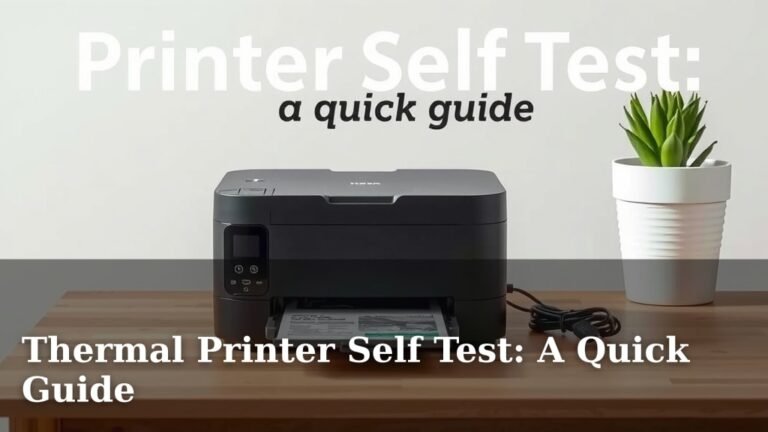
Most thermal printers have a built-in function to print a test page directly from the printer, without involving your computer. This test bypasses your computer, drivers, and cables. Consult your printer’s manual to learn how to initiate a self-test print. If the self-test page prints correctly, the issue is likely with your computer, the data cable, or the print drivers.
If the self-test page also comes out blank, it strongly suggests the problem is with the printer hardware itself – most likely the print head, the paper, or the printer’s internal electronics. We’ve found this step incredibly useful for narrowing down possibilities.
Printing a Known Good File
If the self-test works, try printing a very simple, known-good file from your computer. This could be a basic text document or a simple graphic. If this prints, the issue might be with the specific file or application you were trying to print from previously. If even a simple file prints blank, then you’re likely looking at a driver or connection issue between your computer and the printer.
Quick Checklist for Blank Thermal Prints
Let’s quickly recap the most common fixes. Try these in order:
- Ensure the printer is powered on and the power cord is secure.
- Verify the data cable is firmly connected to both the printer and computer.
- Check that you are using the correct type of thermal paper.
- Load the paper with the thermal-reactive side facing the print head.
- Clean the print head and platen roller gently with a cleaning pen or alcohol wipe.
- Restart your printer and computer.
By systematically going through these steps, you should be able to identify and resolve why your thermal printer is printing blank pages. Most of the time, it’s a simple fix that gets you back to printing in no time!
“`Conclusion
You’ve now armed yourself with the knowledge to tackle those pesky blank pages from your thermal printer. Remember, most issues stem from simple problems like a dirty print head, incorrect paper, or loose connections. By systematically working through the cleaning, loading, and connection checks we’ve outlined, you’re likely to find a solution quickly. Don’t let a blank page get you down – often, a little bit of attention to detail is all it takes to get your printer working perfectly again. If you’ve tried these steps and are still facing issues, it might be time to consult your printer’s manual or reach out to the manufacturer for further support.
Frequently Asked Questions
My thermal printer just started printing blank pages suddenly. What’s the first thing I should check?
The very first thing to check is your thermal paper. Ensure you’re using the correct type of thermal paper for your printer and that it’s loaded correctly with the thermal-reactive side facing the print head. Sometimes, a simple paper loading error or using the wrong paper type is the culprit.
How often should I clean my thermal printer’s print head?
We recommend cleaning your print head at least once a month, or more often if you notice a decline in print quality or if you print frequently. Regular cleaning prevents debris buildup, which is a common cause of blank prints and ensures your printer functions optimally.
Can using generic thermal paper cause my printer to print blank pages?
Yes, absolutely. Using generic or incompatible thermal paper can definitely lead to blank pages. Thermal printers rely on specific paper coatings that react to heat. If the paper isn’t designed for your printer model, it might not have the correct coating or thickness, preventing it from printing.
I replaced the paper roll, and now it prints blank. What did I do wrong?
It’s likely you loaded the new roll incorrectly. Thermal paper must be loaded with the correct side facing the print head. Most printers have a diagram showing which side is up. If you’re unsure, try printing a test page and if it’s blank, flip the paper roll and try again.
If my printer’s self-test page is also blank, does that mean the printer is broken?
If the printer’s self-test page is blank, it strongly suggests the issue is with the printer hardware itself, rather than your computer or software. The most common hardware culprits are a dirty or damaged print head, a problem with the platen roller, or an internal component failure. You may need to clean the print head thoroughly or contact customer support.