Fix Faded Thermal Printer Prints: A Quick Guide
A thermal printer faded print fix is usually quite simple. You can often fix faded thermal printer print by cleaning the print head and ensuring you are using the correct type of thermal paper. Sometimes, a simple adjustment to the darkness setting can also work wonders.
When your thermal printer starts printing faint lines, it can be frustrating. This often happens over time as the printer sees more use. We found that the most common culprits are a dirty print head, worn-out paper, or incorrect settings. Addressing these can quickly restore your printer’s clarity. Troubleshooting these common issues should bring your print quality back.
- Clean the print head with a specialized cleaner or isopropyl alcohol.
- Check if you’re using the right kind of thermal paper.
- Adjust the print darkness setting on your printer.
- Ensure the paper is loaded correctly.
- Consider if the printer is overheating.
Let’s walk through how to tackle these common causes for faded thermal printer output, step by step.
“`htmlTroubleshooting Faded Thermal Printer Output
Is your thermal printer suddenly printing faint or washed-out text? It’s a common problem that many users face. The good news is that you can often fix faded thermal printer output yourself. We’ve found that most issues stem from simple maintenance or configuration. Let’s dive into how you can get your printer back to producing crisp, clear prints.
Your Thermal Print Head: The Heart of the Matter
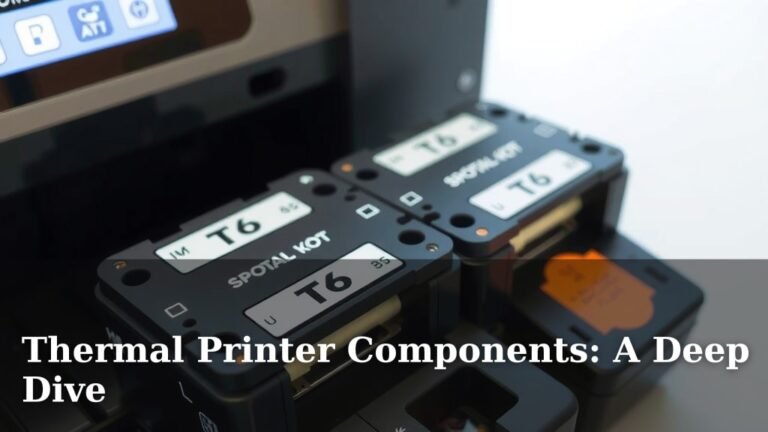
The print head is the component that actually creates the image on the thermal paper. It’s essentially a line of tiny heating elements. When these elements heat up, they activate the special coating on thermal paper, making it turn black. Over time, dust, debris, or even residue from the paper itself can build up on this delicate print head. This buildup acts like a barrier, preventing good contact between the heating elements and the paper.
Why a Dirty Print Head Causes Fading
Think of it like trying to write with a dirty pen tip. The ink flow is blocked, resulting in faint or broken lines. Similarly, when the thermal print head is dirty, not all of the heating elements can make proper contact with the paper. This leads to uneven heating, which translates directly into faded text and images. You might notice specific lines or sections of your printout are lighter than others.
How to Safely Clean Your Thermal Print Head
Cleaning is often the first and most effective step. You’ll want to use the right cleaning materials to avoid damaging the print head. Many manufacturers recommend using a specialized thermal printer cleaning pen or a lint-free cloth dampened with isopropyl alcohol (90% or higher). Never use abrasive materials, as they can scratch the print head and cause permanent damage.
- Gather your supplies: You’ll need a cleaning pen or lint-free cloths and isopropyl alcohol.
- Turn off and unplug: Always ensure your printer is powered off and disconnected from the power source before cleaning. Safety first!
- Access the print head: Open the printer cover and locate the print head. It’s usually a strip of glass or metal along the path where the paper feeds.
- Gently clean: If using a cleaning pen, follow its instructions. If using a cloth, lightly dampen it with alcohol and gently wipe across the print head from one end to the other. Do this a few times, ensuring you cover the entire surface.
- Allow to dry: Let the print head air dry completely for a few minutes before closing the cover and powering the printer back on.
We found that a regular cleaning schedule, perhaps once a month depending on usage, can prevent most fading issues from occurring in the first place. It’s a small effort that makes a big difference in print quality.
The Crucial Role of Thermal Paper Quality
Not all paper is created equal, especially when it comes to thermal printing. Thermal paper has a special heat-sensitive coating. If this coating is of poor quality or has degraded, it won’t react properly to the heat from the print head. This is another common culprit behind faded prints.
Identifying the Right Kind of Thermal Paper
Your printer is designed to work with a specific type of thermal paper. Using the wrong kind can lead to a host of problems, including fading. Often, cheaper or generic brands might not meet the required specifications for heat sensitivity or coating thickness. Many guidelines suggest using OEM-certified or reputable brand thermal paper designed for your specific printer model (e.g., Zebra, Epson, Brother). This ensures the paper will react consistently to the heat elements.
Signs Your Paper Might Be the Problem
How can you tell if the paper is the issue? Sometimes, the paper itself might look or feel different. It could be thinner, have a slightly different texture, or even appear to have a bluish or grayish tint instead of a clean white. If you’ve recently switched brands and started noticing faded prints, the new paper is a prime suspect. Try switching back to a known good brand to see if the problem resolves.
Research suggests that the chemical compounds in the thermal coating can break down over time, especially when exposed to heat, light, or moisture. This degradation means the paper loses its ability to produce a dark, lasting mark. Therefore, always store your thermal paper in a cool, dark, and dry place.
Printer Settings: Fine-Tuning for Clarity
Sometimes, the hardware is fine, and the paper is good, but the printer’s settings are just not quite right. Most thermal printers have adjustable settings that affect print darkness and speed. Incorrectly set darkness levels are a frequent cause of faded printouts.
Adjusting the Darkness Setting
This is one of the easiest fixes you can implement. The darkness setting controls how much heat the print head applies. If the setting is too low, the heat won’t be enough to fully activate the thermal coating, resulting in faint prints. You can usually adjust this through your printer’s driver software on your computer or sometimes directly on the printer’s control panel, if it has one.
Where to find this setting:
- On your computer: Go to your printer settings or preferences, often found by searching for your printer model in Windows or macOS. Look for options related to “Darkness,” “Print Density,” or “Heat Level.”
- On the printer: Some advanced models have an LCD screen. Navigate through the menu options to find the darkness adjustment.
We recommend starting by increasing the darkness setting by one or two increments. Print a test page to see if there’s an improvement. If it’s still too light, try increasing it again. Be careful not to set it too high, as this can sometimes lead to smudged prints or even shorten the lifespan of your print head.
Understanding Print Speed and Its Impact
While less common than darkness, print speed can also play a role. If your printer is set to print extremely fast, the heating elements might not have enough time to adequately heat the paper for a dark mark. Most printers have a default speed setting that works well. If you’ve recently changed this, consider reverting to the default. You can usually find this setting in the same place as the darkness control.
Other Factors Affecting Print Quality
Beyond the print head, paper, and settings, a few other environmental or mechanical factors can contribute to faded print issues.
Correct Paper Loading
It might sound obvious, but ensuring the thermal paper is loaded correctly is essential. The paper must feed through the printer with the heat-sensitive side facing the print head. If it’s loaded backward, the print head will be trying to heat the blank side, and you’ll get nothing or very faint results. Check your printer’s manual for the correct loading orientation.
Overheating Issues
Thermal printers generate heat during operation. If a printer is used for very long, continuous print jobs without breaks, it can start to overheat. Overheating can cause the components, including the print head, to function less efficiently. Some printers have built-in thermal protection that reduces print speed or temporarily stops printing when they get too hot. If you notice fading only after a long print run, let the printer cool down for 15-30 minutes before trying again.
The Age of Your Printer
Like any electronic device, thermal printers have a lifespan. Over years of use, the print head elements can degrade, and other internal components might wear out. If you’ve tried all the above steps and your printer is quite old, it might simply be reaching the end of its effective service life. Many manufacturers provide expected lifespans for their print heads, often measured in kilometers of paper printed or a number of print cycles. Consult your printer’s documentation if you suspect age is the primary factor.
Here’s a quick checklist to help you diagnose your faded print problem:
- Clean the print head with isopropyl alcohol or a cleaning pen.
- Verify paper type and brand are suitable for your printer.
- Increase the darkness setting in your printer’s driver or menu.
- Check paper loading to ensure it’s oriented correctly.
- Allow printer to cool down if printing continuously.
- Consider printer age if other steps fail.
Conclusion
You’ve learned that faded thermal printer prints are usually a fixable issue. Addressing a dirty print head, ensuring you’re using the right thermal paper, and adjusting your printer’s darkness settings are your best bets. We found that these simple maintenance steps often restore your printer’s clarity quickly. If your prints are still faint after trying these, double-check paper loading and consider if your printer needs a break to cool down. For persistent problems, your printer might be aging. Taking these steps should get your thermal printer working like new again.
Frequently Asked Questions
How often should I clean my thermal printer’s print head?
We recommend cleaning your thermal print head at least once a month, especially if you use your printer frequently. If you notice fading or smudging before then, it’s a good time for a cleaning. Regular cleaning prevents buildup that causes faint prints.
Can I use any type of plain paper in my thermal printer?
No, you cannot. Thermal printers require special thermal paper. Regular paper does not have the heat-sensitive coating needed to produce a print. Always use paper specifically designed for thermal printing.
What should I do if my thermal prints fade over time?
Fading over time often points to the thermal paper itself. The heat-sensitive coating can degrade. Ensure you are using high-quality thermal paper and storing it properly away from heat, light, and moisture. If the issue persists, it may be time to switch paper brands.
My thermal printer prints blank pages. What’s wrong?
A blank page usually means the paper is loaded backward, so the heat-sensitive side isn’t touching the print head. Another cause could be a completely dirty or damaged print head, or the printer settings might be too low. Always check paper orientation first.
Is it possible to fix a thermal print head that’s physically damaged?
Unfortunately, if your thermal print head has physical damage like scratches or worn-out heating elements, it’s typically not repairable. In such cases, you would need to replace the print head or the entire printer. Physical damage often requires professional assessment.