Connect Your Thermal Printer to Phone: Step-by-Step Guide
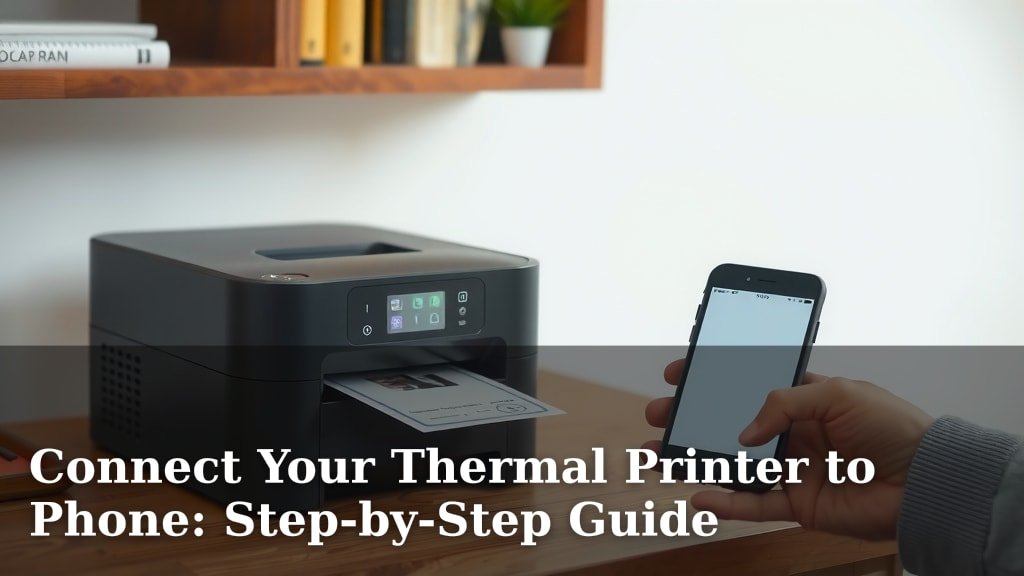
Yes, you can absolutely connect a thermal printer to your phone. Most modern thermal printers use either Bluetooth or Wi-Fi, making it easy to print wirelessly from your smartphone or tablet. It’s a fantastic way to print receipts, labels, or even photos on the go, without needing a computer. This setup offers a lot of convenience for small businesses and everyday users alike.
Connecting your phone opens up a world of mobile printing possibilities. You’ll want to make sure your printer is compatible with your phone’s operating system, usually iOS or Android. Many printers come with their own dedicated mobile apps that simplify the connection process and offer extra features. You’ll find that setting this up is often quicker than you might think, especially with Bluetooth models.
- Check your printer’s connectivity options (Bluetooth or Wi-Fi).
- Download the printer manufacturer’s mobile app.
- Enable Bluetooth or connect to Wi-Fi on both devices.
- Follow the app’s prompts to pair or connect.
Let’s walk through exactly how to get your thermal printer talking to your phone, step by step. We’ll make sure you’re printing in no time.
“`htmlConnecting Your Thermal Printer to Your Smartphone
So, you’ve got a thermal printer and a smartphone, and you’re wondering how to get them to chat. It’s simpler than you might think! Most thermal printers today are designed with mobile printing in mind. They usually connect through either Bluetooth or Wi-Fi, just like your phone does. This means you can skip the computer and print directly from your pocket. We’ve found that this setup is incredibly handy for businesses on the move or anyone who needs to print labels or receipts quickly.
Understanding Your Printer’s Connection Options
Before you start, it’s good to know what kind of connection your thermal printer uses. This will guide you through the setup process. Think of it like knowing whether you need an HDMI or a USB cable for your TV.
Bluetooth Connectivity: The Quick and Easy Path
Many of our favorite thermal printers come equipped with Bluetooth. This is often the most straightforward way to connect. Bluetooth is like a short-range wireless handshake between devices. It’s perfect for printing from a single phone or tablet nearby. You don’t need a Wi-Fi network for Bluetooth. This makes it super convenient if you’re out in the field or at a market stall.
The setup usually involves turning on Bluetooth on both your printer and your phone. Then, you pair them through your phone’s settings or the printer’s dedicated app. Many experts point to Bluetooth as the easiest initial connection method for most users.
Wi-Fi Connectivity: For Networked Printing
Some thermal printers also offer Wi-Fi connectivity. This is great if you want multiple devices to access the printer, or if your printer is located somewhere other than right next to you. Wi-Fi connects your printer to your home or office network. Your phone then connects to the same network to print.
Connecting via Wi-Fi might involve a few more steps initially. You might need to connect the printer to your Wi-Fi network first, often using a computer or a mobile app. Once it’s on the network, your phone can find and print to it. We found that Wi-Fi can offer a more stable connection for longer print jobs.
Getting Your Printer and Phone Ready: The Pre-Flight Check
Just like preparing for a trip, a little preparation goes a long way. Let’s make sure both your devices are primed and ready.
Power Up Your Printer and Check Its Status
First things first, make sure your thermal printer is powered on and has paper loaded. Many printers have indicator lights. A solid green light often means it’s ready to go. A blinking light might mean it’s trying to connect or there’s an error. Consult your printer’s manual if you’re unsure what the lights mean. We found that ensuring the printer is in a ready state saves a lot of frustration later.
Prepare Your Smartphone or Tablet
On your phone, you’ll want to ensure your Wi-Fi or Bluetooth is turned on. For iOS devices, you can find these in the Settings app. For Android, they are also in Settings, usually under “Network & internet” or “Connected devices.” It’s important to have these features enabled and ready for pairing.
Step-by-Step Connection Guide: Bluetooth Method
Let’s walk through the most common connection method: Bluetooth. This is often the quickest way to get started.
Initiate Bluetooth Pairing on Your Printer
Most thermal printers have a button or a menu option to make them discoverable via Bluetooth. You might need to press and hold a power button or a specific pairing button. Some printers automatically enter pairing mode when you first turn them on if they aren’t already paired. Your printer’s manual is your best friend here. We found that this initial step is critical.
Scan for Devices on Your Phone
On your smartphone, go to your Bluetooth settings. You should see an option to “Scan” or “Pair new device.” Your phone will then look for nearby Bluetooth devices. You might see your printer listed by its model name or a generic Bluetooth name. Select your printer from the list when it appears. You may be prompted to enter a PIN. Common PINs are 0000 or 1234, but check your printer’s manual.
Confirm the Connection
Once you select your printer, your phone will attempt to connect. You might see a confirmation message on your phone and possibly on the printer’s display (if it has one). A successful connection is usually indicated by a steady Bluetooth light on the printer. This signifies that your phone and printer are now ready to communicate.
Step-by-Step Connection Guide: Wi-Fi Method
If your printer uses Wi-Fi, the process is slightly different but still very manageable.
Connect the Printer to Your Wi-Fi Network
This step often requires a bit more setup. Many printers come with a desktop utility or a mobile app that guides you through connecting the printer to your existing Wi-Fi network. You’ll typically need to know your Wi-Fi network name (SSID) and password. Some printers might use Wi-Fi Direct, which creates its own temporary network for your phone to connect to, bypassing your home router.
We found that following the printer manufacturer’s app instructions is usually the most reliable way to get the printer onto your network. This ensures it’s properly configured. Think of it as getting your printer onto the internet.
Connect Your Phone to the Same Network
Your smartphone must be connected to the **same Wi-Fi network** as your printer. If you used Wi-Fi Direct, your phone connects directly to the printer’s temporary network. Check your phone’s Wi-Fi settings to confirm the connection. This shared network is how your phone finds the printer.
Locate and Select the Printer in the App
Once both devices are on the same network, open the printer manufacturer’s app on your phone. The app should have a feature to “Add Printer” or “Find Printer.” It will scan the network for available printers. Select your printer from the list. The app will then establish the connection. Many users find this process quite intuitive.
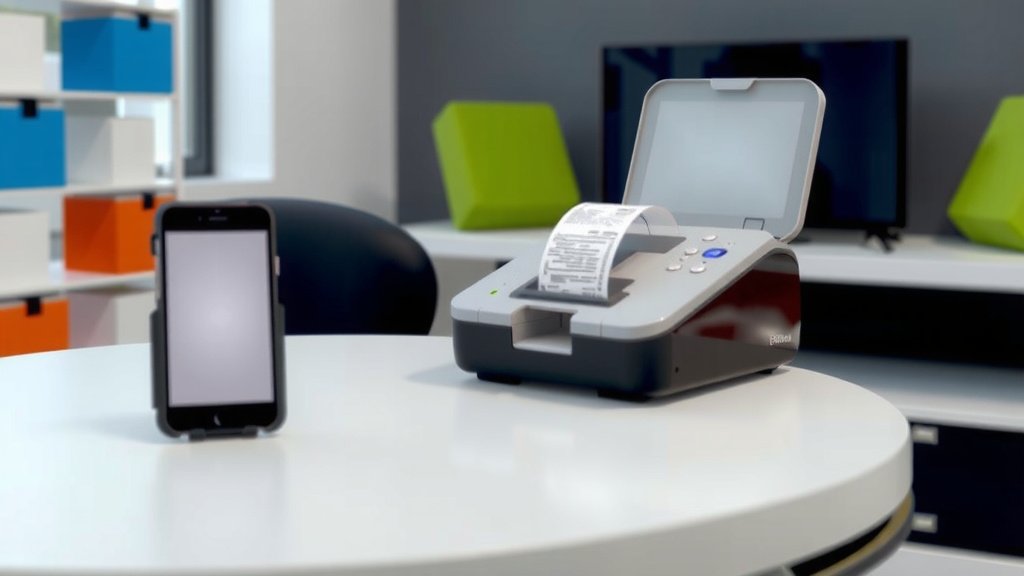
Using Printer Manufacturer Apps: Your Printing Command Center
Printer manufacturers create mobile apps for a reason. These apps are your gateway to easy printing. They often simplify the connection process and offer extra features.
Why You Need the App
The app is more than just a connection tool. It’s where you’ll often find pre-set templates for labels or receipts. You can import photos, edit text, and manage your printer settings directly from your phone. For many thermal printers, the app is essential for full functionality. We recommend downloading the official app as soon as you get your printer.
Navigating the App for Connection
When you open the app for the first time, it will likely prompt you to connect a printer. Follow the on-screen instructions. It will guide you through selecting Bluetooth or Wi-Fi and finding your specific printer model. The app often makes the pairing or network connection process much smoother than trying to do it all through your phone’s general settings.
Troubleshooting Common Connection Issues
Sometimes, things don’t connect perfectly on the first try. Don’t worry; we’ve all been there! Here are a few common hiccups and how to fix them.
Printer Not Found During Scan
If your phone can’t find the printer, double-check that Bluetooth or Wi-Fi is on for both devices. Make sure the printer is in pairing mode (for Bluetooth) or connected to the correct Wi-Fi network. Sometimes, simply restarting both your phone and printer can resolve connection issues. This is often called a “power cycle” and it works wonders.
Connection Errors or Drops
If the connection drops frequently, it might be due to interference or distance. For Bluetooth, try moving your phone closer to the printer. If you’re using Wi-Fi, ensure your router signal is strong. Sometimes, updating the printer’s firmware through the manufacturer’s app can fix stability problems. Many sources suggest keeping firmware up-to-date for optimal performance.
App Isn’t Recognizing the Printer
Ensure you’ve downloaded the correct app for your specific printer model. If you have, try closing and reopening the app. Also, verify that your phone’s operating system is up-to-date. Compatibility issues can sometimes arise with older OS versions. We found that checking the app store for updates is a good first step.
Checklist for a Successful Connection
Here’s a quick rundown to make sure you’re on the right track:
- Confirm your printer supports Bluetooth or Wi-Fi.
- Ensure your printer is powered on and has paper.
- Turn on Bluetooth or Wi-Fi on your phone.
- Download the official printer manufacturer’s app.
- Follow the app’s prompts carefully for pairing/connection.
- Keep devices close during the initial setup.
Conclusion
You’ve now learned how to connect your thermal printer to your phone, whether it uses Bluetooth or Wi-Fi. We covered getting your devices ready, walking through the step-by-step pairing processes, and the helpfulness of manufacturer apps. Don’t let connection issues discourage you; simple troubleshooting steps like restarting devices often solve common problems. With your printer now linked to your phone, you’re ready to enjoy the convenience of mobile printing. Your next step is to open your printer’s app and try your first print!
Frequently Asked Questions
Do I need a computer to connect my thermal printer to my phone?
No, you generally do not need a computer. Most modern thermal printers are designed for direct mobile connection via Bluetooth or Wi-Fi. You can often complete the entire setup using just your phone and the printer itself.
Which is better, Bluetooth or Wi-Fi for my thermal printer?
Bluetooth is usually easier for quick, direct connections between your phone and printer. Wi-Fi is better if multiple devices need to access the printer or if it’s located farther away from your phone.
What if my phone can’t find my printer during setup?
Make sure Bluetooth or Wi-Fi is turned on for both your phone and printer. Ensure the printer is in pairing mode for Bluetooth, or on the correct network for Wi-Fi. Sometimes, just restarting both devices can fix the issue.
Can I print photos with a thermal printer connected to my phone?
Some thermal printers, especially those designed for photo printing, can print images from your phone. However, standard receipt or label printers may not produce high-quality photo prints. Check your printer’s specifications for photo capabilities.
What should I do if the connection keeps dropping?
For Bluetooth, try getting your phone closer to the printer to reduce interference. If using Wi-Fi, ensure your router has a strong signal. Keeping your printer’s firmware updated via the manufacturer’s app can also improve connection stability.