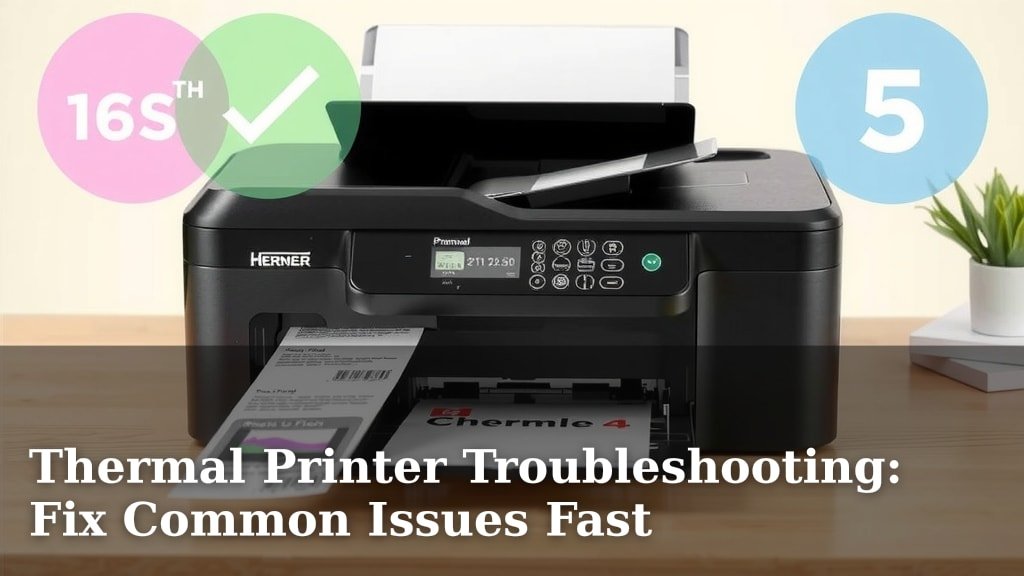
Thermal Printer Troubleshooting: Fix Common Issues Fast
Troubleshooting a thermal printer usually involves checking the power connection, ensuring the paper is loaded correctly, and verifying the driver software is up-to-date. Most common issues stem from simple setup errors, not complex hardware failures. Resolving these problems quickly gets your printing back on track.
If your thermal printer isn’t working, don’t panic! We’ve researched the most frequent causes of thermal printer malfunctions. Addressing the basic checks first often solves the puzzle. We’ll help you identify and fix common hiccups like blurry prints or connectivity problems.
- Check if the printer is powered on.
- Ensure the paper roll is inserted correctly.
- Confirm the print head is clean.
- Update your printer’s drivers.
- Restart both your printer and computer.
Let’s walk through exactly how to tackle these common thermal printer issues step by step, so you can get back to printing your labels or receipts without a hitch.
“`htmlSolving Your Thermal Printer’s Printing Puzzles
Thermal printers are workhorses for many businesses, whipping out receipts and labels with impressive speed. But sometimes, they can be a bit stubborn. When your printer throws a digital tantrum, it’s easy to feel frustrated. We’ve gathered the most common issues and straightforward fixes.
Power and Connectivity: The First Line of Defense
Before diving into complex settings, let’s cover the absolute basics. Many printing problems are surprisingly simple to solve. Think of it like checking if your TV is plugged in before calling customer service.
Is It Actually On?
It sounds obvious, but checking the power connection is always step one. Make sure the power cord is firmly plugged into both the printer and a working electrical outlet. Many printers have a power indicator light. If it’s off, try a different outlet. Sometimes, the issue is just a loose plug or a tripped breaker.
The Cable Connection Conundrum
Your printer needs to talk to your computer. If the cable connecting them (USB, Ethernet, or serial) is loose or damaged, that conversation stops. Gently unplug and re-plug both ends of the cable. If you have a spare cable, try swapping it out. This simple step often clears up connectivity problems.
Restarting: The Universal Fix
We’ve all heard it, but the “turn it off and on again” advice is popular for a reason. A simple restart can clear temporary glitches in both your printer and your computer. Power down your printer completely. Then, shut down your computer. Wait about 30 seconds. Turn your computer back on first, then power up your printer. This reset often solves unexpected errors.
Paper and Roll Issues: Are You Feeding It Right?
The paper itself is a key player in thermal printing. Loading it incorrectly or using the wrong type can cause a cascade of problems.
Loading the Paper Roll Correctly
Your printer needs the paper fed in the right direction. Most thermal printers have diagrams showing how to load the paper roll. Ensure the paper is feeding off the roll smoothly and that the end is properly aligned with the print head. If it’s crooked, you might get skewed prints or errors. The paper should unwind from the bottom or top, depending on your model.
Understanding Thermal Paper
Not all paper is created equal. Thermal printers use special heat-sensitive paper. If you use regular paper, it won’t print. Also, ensure you’re using the correct size roll for your printer. A roll that’s too wide or too narrow won’t fit or feed correctly. Always check your printer’s manual for the recommended paper specifications.
The Paper Sensor Struggle
Your printer has sensors to detect the paper. Sometimes, dust or debris can block these sensors. Gently clean the sensor area with a soft, dry cloth. If your printer has an auto-calibration feature, try running it. This helps the printer “see” the paper correctly.
Print Quality Woes: Blurry or Faded Prints?
When your labels or receipts look faded or blurry, it’s usually a print head or cleanliness issue. Don’t worry; this is often fixable with a little maintenance.
Cleaning the Print Head: A Vital Task
The print head is the heart of your thermal printer. It gets hot and transfers the image to the paper. Over time, dust, adhesive residue from labels, or ink can build up. This buildup obstructs the heat, leading to faded or missing lines.
- Find the print head: It’s usually a black or dark gray strip on the inside of the printer cover.
- Use a cleaning pen or alcohol wipe: Specialized thermal print head cleaning pens are best. If you don’t have one, a lint-free cloth lightly dampened with isopropyl alcohol can work.
- Wipe gently: Move the cloth from one side of the print head to the other, applying light pressure. Let it air dry completely before closing the printer.
Many printer manufacturers, like Zebra and Brother, recommend this cleaning process regularly. A clean print head ensures sharp, clear prints every time.
Checking the Platen Roller
The platen roller is the rubber cylinder that supports the paper as it passes under the print head. If it’s dirty or damaged, it can affect print quality. Wipe it gently with a soft cloth. Ensure it spins freely.
Driver and Software Glitches: The Invisible Roadblocks
Sometimes, the issue isn’t with the printer hardware itself but with the software telling it what to do.
Updating Your Printer Drivers
Printer drivers are like translator programs. They help your computer communicate with your printer. If the drivers are outdated, corrupted, or incompatible with your operating system, printing can fail.
We found that outdated drivers are a common culprit for driver software issues. Visit the printer manufacturer’s official website. Look for the support or downloads section. Enter your printer model number to find the latest drivers for your operating system. Download and install them, then restart your computer.
Verifying Printer Settings
Your printing software might have incorrect settings. For example, if you’re printing a label that’s 4×6 inches, but your printer driver is set to a 2×3 inch label, you’ll get odd results. Open your printing preferences or properties. Ensure the label size, orientation, and other settings match the media you’re using.
Reinstalling the Printer Software
If updating drivers doesn’t help, try a clean reinstall. First, uninstall the printer from your computer’s devices list. Then, download the latest drivers again and reinstall them. This can clear out any corrupted software files that might be causing problems.
When All Else Fails: Deeper Dives
If you’ve gone through the common checks and your printer still isn’t cooperating, it might be time to look a bit closer.
Firmware Updates
Some thermal printers can have their internal software, called firmware, updated. Check your manufacturer’s website. Firmware updates can fix bugs and improve performance. Follow the manufacturer’s instructions precisely for updating firmware, as a mistake can brick the device.
Test Print from Printer (Self-Test)
Most thermal printers have a self-test or diagnostic mode. This prints a test page directly from the printer’s memory, bypassing the computer and drivers. If the self-test prints clearly, the problem is likely with your computer’s connection or software. If the self-test is also bad, the issue is more likely with the printer hardware itself. Consult your printer manual for how to perform a self-test.
Common Error Codes and Lights
Pay attention to any flashing lights or error messages on your printer’s display. These are designed to tell you what’s wrong. Consult your printer’s user manual to decipher these codes. For instance, a flashing red light might indicate an error, while a steady green light means it’s ready.
Here’s a quick checklist for when things go wrong:
- Power Check: Is the power cord secure? Is the printer on?
- Paper Load: Is the roll inserted correctly and feeding smoothly?
- Print Head Clean: Has the print head been cleaned recently?
- Driver Update: Are your printer drivers up-to-date?
- Restart: Have you tried restarting both the printer and computer?
- Error Lights: Are there any error lights or messages? Check your manual.
By systematically working through these troubleshooting steps, you can often identify and resolve the most common thermal printer issues. Remember to always refer to your specific printer model’s manual for detailed instructions.
“`Conclusion
You’ve now armed yourself with the knowledge to tackle most common thermal printer issues. We’ve covered everything from simple power checks to deeper software and hardware diagnostics. Remember, a clean print head and up-to-date drivers are often your best friends for clear, consistent prints. Don’t hesitate to consult your printer’s manual for model-specific guidance. If you’ve tried these steps and are still stuck, reaching out to the manufacturer’s support is your next logical step to get your printer humming again.
Frequently Asked Questions
Why is my thermal printer suddenly printing blank pages?
Blank pages usually mean the print head isn’t heating properly or the paper isn’t feeding. Double-check that you’re using actual thermal paper and that it’s loaded correctly. A dirty print head can also cause this, so try cleaning it gently with a specialized pen or an alcohol wipe.
My thermal printer is making strange noises; is this normal?
Some operational sounds like whirring or clicking are normal as the printer feeds paper and prints. However, loud grinding or unusual clunking noises might indicate a mechanical issue. Check for any small obstructions like paper scraps inside the printer that could be interfering with moving parts.
Can I use regular paper in a thermal printer?
No, you cannot use regular paper in a thermal printer. Thermal printers rely on special heat-sensitive paper that darkens when heated by the print head. Using regular paper will result in no printing at all.
How often should I clean the print head on my thermal printer?
The frequency of cleaning depends on your usage and environment, but a good rule of thumb is every 500-1000 prints, or whenever you notice print quality degrading. If you print frequently or in dusty conditions, more regular cleaning might be necessary.
My printer keeps saying “out of paper” when there’s a full roll loaded. What’s wrong?
This often points to a sensor issue or incorrect paper loading. Ensure the paper is feeding smoothly and that the sensors aren’t blocked by dust or debris. Try running a calibration cycle if your printer supports it, as this helps the printer accurately detect the paper’s presence and size.