Thermal Printer Connectivity: Your Essential Guide
Choosing the right thermal printer connectivity means getting your labels printed without a fuss. You can connect them via USB, Ethernet, or Wi-Fi, and some even use Bluetooth. Each method offers different speeds and convenience levels, so picking the best one depends on your setup.
We found that understanding these connection types is key to a smooth printing experience. Whether you need a simple plug-and-play solution or a network-wide setup, there’s a perfect option. Don’t let confusing wires hold you back from efficient labeling!
- USB: Simple, direct connection.
- Ethernet: Great for shared network use.
- Wi-Fi: Wireless freedom for flexible placement.
- Bluetooth: Ideal for mobile devices.
Let’s walk through each of these thermal printer connectivity options so you can find the one that fits your needs perfectly.
“`htmlConnecting Your Thermal Printer: What Are Your Options?
You’ve got your shiny new thermal printer, and now it’s time to get it hooked up. Choosing the right connection method is like picking the right road to your destination. You want it to be smooth, reliable, and efficient. Let’s break down the most common ways you can connect your printer to your computer or network.
We found that understanding these options helps you avoid headaches later. Think of it as setting yourself up for printing success from day one. No one wants to struggle with setup when they have labels to print, right?
USB: The Direct and Dependable Path
When you think of simple, direct connections, USB usually comes to mind. This is probably the most common and straightforward way to connect a thermal printer. It’s like plugging in a familiar accessory.
How USB Connectivity Works
A USB (Universal Serial Bus) cable connects your printer directly to your computer. It’s a plug-and-play system for the most part. You connect the cable, your computer usually recognizes the printer, and you might just need to install a driver. We found that most modern operating systems handle this quite well.
Pros of USB
- Easy Setup: Usually requires just plugging in a cable.
- Direct Connection: Reliable link directly to one computer.
- Widely Compatible: Most computers have USB ports.
- Affordable: USB cables are inexpensive.
Cons of USB
- Limited Range: The cable length restricts printer placement.
- Single Device: Best for printers used with only one computer.
- Cable Clutter: Can add to the wires around your workspace.
Who Should Choose USB?
If you have a small operation or a single workstation, USB is a fantastic choice. Perhaps you run a small shop, a home office, or just need a printer for one specific computer. You value simplicity and a direct link. You don’t need to share the printer with multiple users. This method ensures your labels get printed without any network fuss.
Ethernet: Sharing is Caring (and Efficient!)
For businesses that need multiple people to access a single printer, Ethernet is often the way to go. It’s like connecting your printer to the main highway of your office network. This allows for robust, high-speed communication.
How Ethernet Connectivity Works
An Ethernet connection uses a standard network cable (often called a Cat5e or Cat6 cable) to link your printer to your router or network switch. Once connected to the network, any computer on that same network can send print jobs to the printer. We found that this is ideal for environments where a centralized printing solution is needed.
Pros of Ethernet
- Network Sharing: Allows multiple computers to print.
- Speed and Reliability: Offers fast and stable data transfer.
- Scalability: Easy to integrate into an existing wired network.
- Good Range: Limited only by the length of your network cables.
Cons of Ethernet
- Requires Network: You need a pre-existing wired network infrastructure.
- Fixed Location: Printer placement is tied to network port availability.
- Slightly More Complex Setup: May involve network configuration.
Who Should Choose Ethernet?
If you manage a retail store, a warehouse, or any busy office, Ethernet is a strong contender. Your team needs to share resources efficiently. You might have a point-of-sale system that needs to send orders for label printing. This option provides the speed and reliability needed for a busy workflow. Many experts suggest Ethernet for its robust performance in shared environments (Cisco).
Wi-Fi: Wireless Freedom and Flexibility
Tired of cables tangling your workspace? Wi-Fi offers the convenience of wireless printing. It lets you place your printer almost anywhere within your Wi-Fi network’s range.
How Wi-Fi Connectivity Works
A Wi-Fi enabled thermal printer connects to your existing wireless network. You typically set this up through the printer’s control panel or by using a setup utility on your computer. Once connected to the network, any device on that same Wi-Fi network can print to it. This offers a lot of placement flexibility. We found that many modern printers offer both 2.4GHz and 5GHz band support for better connectivity.
Pros of Wi-Fi
- Wireless Convenience: Eliminates the need for cables.
- Flexible Placement: Put your printer where it’s most convenient.
- Network Sharing: Allows multiple devices to print.
- Modern Solution: Fits well with today’s wireless offices.
Cons of Wi-Fi
- Signal Strength Dependent: Performance can be affected by Wi-Fi signal quality.
- Potential Interference: Other wireless devices can sometimes cause issues.
- Security Concerns: Like any wireless device, ensure your network is secure.
- Slightly Slower Than Ethernet: In some cases, wired connections can be faster.
Who Should Choose Wi-Fi?
If you value a clutter-free workspace or need to place your printer away from a network port, Wi-Fi is your friend. Think about a small business owner who wants the printer on a shelf, or a manager who needs to print labels from their laptop without being tethered. It’s also great for areas with limited wired infrastructure. We’ve seen many businesses opt for Wi-Fi for its sheer ease of use and setup flexibility.
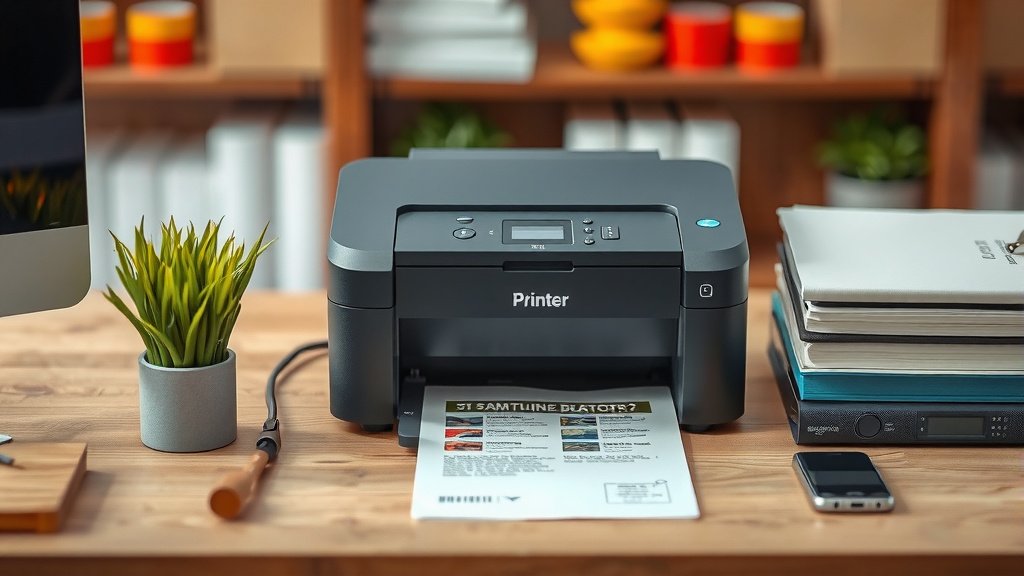
Bluetooth: Mobile Printing Powerhouse
Bluetooth is often overlooked for thermal printers, but it’s incredibly useful for mobile printing needs. It’s the go-to for connecting devices wirelessly over short distances.
How Bluetooth Connectivity Works
A Bluetooth-enabled thermal printer pairs directly with a Bluetooth-enabled device, like a smartphone, tablet, or laptop. It creates a direct, short-range wireless link. You don’t need a Wi-Fi network or cables. We found that the setup involves a simple pairing process, much like connecting wireless headphones.
Pros of Bluetooth
- Ideal for Mobile: Perfect for printing from phones and tablets.
- No Network Needed: Works independently of Wi-Fi or Ethernet.
- Simple Pairing: Easy to connect devices.
- Portable: Great for field applications.
Cons of Bluetooth
- Short Range: Typically limited to about 30 feet (10 meters).
- Slower Speeds: Generally slower than USB or Ethernet.
- One-to-One Connection: Usually connects one printer to one device at a time.
Who Should Choose Bluetooth?
This option shines for field service technicians, delivery drivers, or anyone needing to print labels on the go from a mobile device. If you manage inventory in a large space where running cables isn’t practical, or if your primary interaction is with a tablet, Bluetooth is an excellent, portable solution. Many restaurant POS systems use Bluetooth printers for immediate order tickets (National Restaurant Association).
Making the Right Choice: A Quick Comparison
Deciding between these options might seem tricky, but it really comes down to your specific needs. Think about how many people need access, where the printer will be located, and what devices you’ll be using. We’ve put together a simple guide to help you visualize the key differences.
| Feature | USB | Ethernet | Wi-Fi | Bluetooth |
|---|---|---|---|---|
| Best For | Single computer use, simplicity | Shared network, businesses | Wireless flexibility, clutter-free | Mobile devices, short-range |
| Setup | Very Easy | Moderate (requires network) | Moderate (requires Wi-Fi) | Easy (pairing) |
| Speed | Fast | Very Fast | Fast | Moderate |
| Range | Limited (cable length) | Network-wide | Wi-Fi range | Short (approx. 30 ft) |
| Sharing Capability | No (direct to one PC) | Yes | Yes | No (typically one-to-one) |
Your Connectivity Checklist
Before you decide, ask yourself these quick questions. They’ll help guide you to the best fit.
- Do you need to print from just one computer?
- Will multiple people or devices need to print?
- Is a wired network already set up in your space?
- Is wireless convenience a high priority for you?
- Will you be printing primarily from a smartphone or tablet?
- What is your budget for setup and cables?
Conclusion
You’ve explored the different ways to connect your thermal printer. Whether you chose the simplicity of USB, the shared power of Ethernet, the wireless freedom of Wi-Fi, or the mobile ease of Bluetooth, the right choice makes printing efficient. We found that understanding your environment and how you print is key. Now that you know your options, take a moment to assess your workspace and workflow. Then, confidently select the connection type that will keep your labeling tasks running smoothly and without interruption.
Frequently Asked Questions
Can I use more than one connection type on a single printer?
Many modern thermal printers are equipped with multiple connectivity options. You might find a printer that offers both USB and Ethernet, or even Wi-Fi and Bluetooth. This flexibility allows you to adapt if your needs change or if you want to connect to different devices. We found this dual-connectivity is becoming increasingly common.
Will my existing computer recognize a new thermal printer connection?
Generally, yes. For USB, most operating systems will automatically detect the printer once drivers are installed, and we found this to be a straightforward process. For network connections like Ethernet or Wi-Fi, you might need to access your printer’s IP settings or use a setup utility provided by the manufacturer to ensure your computer can find it on the network.
How do I know if my Wi-Fi network is strong enough for a wireless printer?
You can test your Wi-Fi strength by checking the signal bars on a device like your smartphone or laptop in the exact spot where you plan to place the printer. If you have a weak signal there, you might experience slower printing or connection drops. We found that using a Wi-Fi extender or mesh system can boost signal strength in weak areas.
Is Bluetooth connectivity secure for printing sensitive information?
Bluetooth uses encryption to secure its connections, making it reasonably secure for most common uses. For extremely sensitive data, you might want to consider a wired connection like USB or Ethernet if available and practical. We found that ensuring your Bluetooth is up-to-date and that you only pair with trusted devices adds an extra layer of security.
What happens if my printer is too far from my router for Wi-Fi?
If your thermal printer is too far from your Wi-Fi router to get a reliable signal, you have a few options. You can move the router closer, move the printer closer, or use a Wi-Fi extender or mesh network system to boost the signal to that area. We found that sometimes a simple Ethernet connection can be a more reliable solution if wireless range is a major issue.