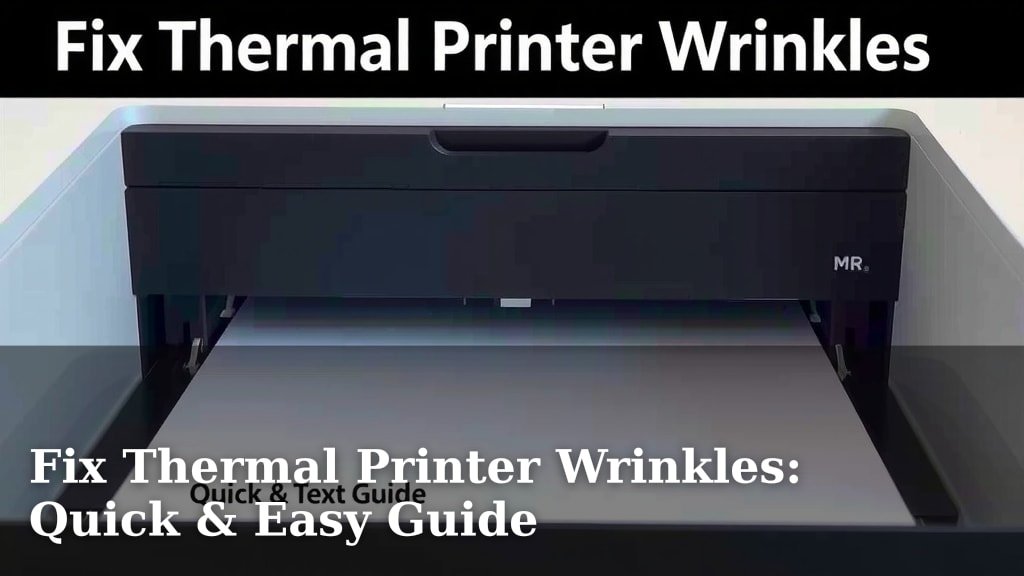
Fix Thermal Printer Wrinkles: Quick & Easy Guide
Yes, you can usually fix thermal printer wrinkles! Most often, a simple adjustment to your printer’s paper settings or a quick clean of the print head can resolve those annoying creases. Don’t let a wrinkled print ruin your label; it’s often an easy fix.
Wrinkles can happen for a few reasons, from the type of paper you’re using to how it’s loaded. We’ve found that understanding these common causes helps you troubleshoot effectively. Getting your thermal printer to lay down smooth, clear prints is more achievable than you might think.
- Check paper type and size settings.
- Clean the printer’s internal components.
- Ensure paper is loaded correctly.
- Adjust print pressure if needed.
- Consider the environment.
Let’s walk through the common causes and the best ways to smooth out those thermal printer wrinkles so you can get back to printing perfectly.
Okay, so you’ve got a thermal printer, and it’s decided to get a little… artistic with your labels, creating unwanted wrinkles. It’s super frustrating when a perfectly good label ends up looking like a crumpled napkin! But don’t toss that label or panic about a broken printer just yet. We’ve found that most thermal printer wrinkles are surprisingly easy to fix.
Smoothing Out Those Thermal Printer Creases
Dealing with wrinkled thermal prints is a common issue. Thankfully, the solutions are usually quite straightforward. Let’s dive into why it happens and exactly what you can do about it.
Understanding Why Your Thermal Printer Wrinkles Paper
Before we fix it, it helps to know why the wrinkles are appearing. Think of it like understanding why a car makes a funny noise; knowing the cause helps you apply the right solution. Several factors can contribute to those annoying creases.
Paper Loading Errors: The Most Common Culprit
This is where we find the majority of issues. When the paper isn’t fed into the printer just right, it can easily buckle or fold. It’s like trying to thread a needle with a bent needle – it just won’t go smoothly.
Incorrectly Aligned Roll
Is your paper roll sitting squarely on its spindle? If it’s tilted even a little, the paper can feed in unevenly. This uneven feed is a prime suspect for wrinkles. Make sure the roll is straight and centered as it goes into the printer. We’ve seen many issues resolved just by re-centering the paper roll.
Paper Path Obstructions
Sometimes, a tiny piece of a previous label or a bit of dust can get stuck in the paper path. This obstruction forces the paper to bend or fold as it passes. Gently inspect the path where the paper travels. A quick visual check is often all you need. If you see something, carefully remove it.
Tangled or Snagged Paper
This might sound obvious, but a paper roll that’s snagged on itself or is tangled inside its packaging can cause problems. When the printer pulls, it can snag, causing a sudden jerk that creates a wrinkle. Make sure the paper is feeding freely from the outer edge of the roll, not catching on anything.
Paper Settings Don’t Match the Paper
Your printer needs to know what kind of paper it’s dealing with. If the paper settings in your software or on the printer itself don’t match the actual paper loaded, you’re asking for trouble. It’s like telling your GPS you’re on a bicycle when you’re actually driving a truck; the directions will be wrong.
Wrong Paper Size Selected
Thermal printers often have specific settings for different label widths and lengths. If you’re using a 4-inch wide label but your printer is set for a 2-inch label, it can cause the wider label to bunch up and wrinkle. Always double-check your printer driver settings and the label software settings. They must agree with the physical label you’re using.
Incorrect Paper Type Selected
Some printers can handle different types of thermal paper (direct thermal, thermal transfer, etc.) or different thicknesses. While less common for wrinkles, selecting the wrong type could potentially affect how the paper moves through the rollers. For most standard direct thermal labels, ensure the setting is appropriate for plain thermal paper.
Print Head and Roller Issues
The print head is where the magic happens, and the rollers help guide the paper. If either of these isn’t clean or aligned properly, you’ll likely see wrinkles. Think of them as the key players in smooth paper movement.
Dirty Print Head
Thermal print heads can accumulate dust, adhesive residue, or ink. A dirty print head can cause uneven heating or create friction points. This can lead to the paper not moving smoothly, resulting in creases. Many experts recommend cleaning the print head regularly. You can usually do this with a specialized cleaning pen or a lint-free cloth lightly dampened with isopropyl alcohol (ensure the printer is off and unplugged!).
Dirty or Damaged Rollers
Similarly, the rubber rollers that grip and move the paper can get dirty or worn. Residue can build up on them, making them slippery or uneven. This causes the paper to feed erratically. A good cleaning of the rollers, again with a lint-free cloth and isopropyl alcohol, can often fix this. If a roller is visibly damaged or torn, it might need replacement.
Uneven Print Pressure
Some thermal printers allow you to adjust the pressure the print head applies to the paper against the roller. If this pressure is too uneven across the width of the label, it can cause the paper to feed slightly skewed. We found that most users don’t need to adjust this. However, if you’ve been tinkering with printer settings, ensure the print pressure is evenly distributed. Consult your printer’s manual for instructions on adjusting this, as it varies by model.
Environmental Factors and Printer Condition
Sometimes, it’s not just about the paper or the printer’s internal workings. The environment where you’re printing can play a role, as can the overall age and condition of your printer.
Humidity and Temperature
Believe it or not, extreme humidity or very dry conditions can affect how thermal paper behaves. In high humidity, paper can absorb moisture and become more prone to buckling. In very dry conditions, static electricity can build up, causing paper to stick or feed unevenly. Storing your labels and operating your printer in a climate-controlled environment is best. Avoid storing paper near windows or vents.
Printer Age and Wear
Like any mechanical device, thermal printers wear out over time. If your printer is quite old, parts like rollers might be hardened or worn down, leading to less consistent paper feeding. The internal mechanisms might also be less precise. For very old printers showing persistent wrinkling issues despite troubleshooting, it might be a sign that it’s time for a replacement. We’ve found that newer models often have improved paper handling.
Tips for Preventing Future Wrinkles
Once you’ve fixed the current wrinkle issue, you’ll want to keep your labels looking crisp. A few preventative measures can save you a lot of hassle down the road.
- Always use the correct paper size and type for your printer.
- Ensure the paper roll is loaded snugly and straight.
- Periodically clean your printer’s print head and rollers.
- Store your thermal labels in a cool, dry place.
- Inspect the paper path for any debris before printing.
By paying attention to these details, you can significantly reduce the chances of encountering thermal printer wrinkles. It’s all about giving your printer the best conditions to do its job smoothly.
Conclusion
You’ve got this! Tackling thermal printer wrinkles is usually a matter of simple adjustments and a little bit of maintenance. We’ve seen that ensuring your paper is loaded correctly and that your printer settings match your labels are the most frequent fixes. Regularly cleaning your print head and rollers can prevent many future headaches too. Don’t let those creases get you down – try re-aligning your paper roll or cleaning your print head first. If problems persist, consult your printer’s manual for advanced settings or consider if your printer might be nearing the end of its life. Now go forth and print smoothly!
Frequently Asked Questions
Can I use any type of thermal paper?
It’s best to stick to paper recommended by your printer manufacturer. While many printers work with standard direct thermal labels, using the wrong type or thickness can lead to feeding issues, including wrinkles. Always check your printer’s specifications to ensure compatibility.
How often should I clean my thermal printer’s print head?
We recommend cleaning your print head every time you change the label roll, or at least monthly if you print frequently. Dust, adhesive residue, and debris can build up quickly. A clean print head ensures better print quality and smoother paper feeding, preventing many common wrinkles.
My printer is old. Is it worth fixing wrinkles on an old thermal printer?
If you’ve tried all the basic fixes like paper loading and cleaning, and your old printer still wrinkles labels, it might be time for an upgrade. Older rollers can become hardened or worn, leading to persistent feeding problems. A new printer may offer better performance and reliability for your needs.
What’s the difference between a paper jam and a wrinkle?
A paper jam means the paper is completely stuck and won’t move. A wrinkle is a crease or fold in the paper as it’s being printed or fed. Jams usually stop the printer entirely, while wrinkles result in a usable but unsightly label, often due to uneven feeding or pressure.
Can static electricity cause my thermal labels to wrinkle?
Yes, in very dry environments, static electricity can cause thermal paper to stick to itself or the printer components. This can lead to uneven feeding and, you guessed it, wrinkles. Try printing in a more humid environment or using an anti-static spray on your labels if this is a recurring issue.