Fix Thermal Printer Feed Issues Fast: Simple Solutions
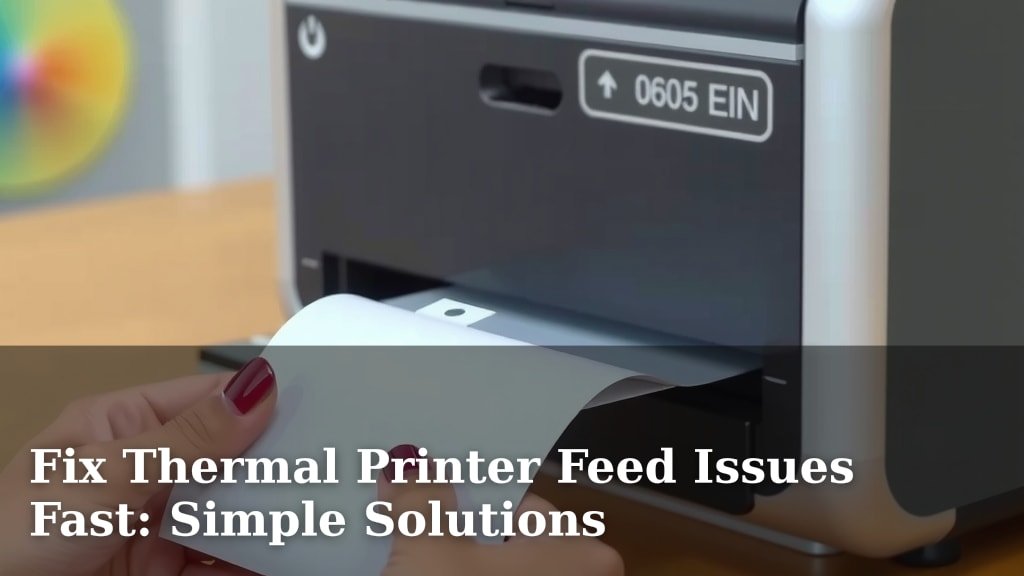
A thermal printer not feeding paper can be a real head-scratcher, but don’t worry! The most common fix for a thermal printer feed issue is to clean the feed roller and ensure the paper roll is loaded correctly. Sometimes, a simple paper jam is the culprit.
This paper feeding problem can halt your entire operation. We’ve found that understanding the different causes, from dust buildup to improper loading, helps you fix it faster. It’s often a quick repair you can do yourself.
- Check for paper jams first.
- Clean the paper feed roller.
- Ensure the paper roll is loaded correctly.
- Test with a new paper roll.
- Restart your printer and device.
Let’s walk through the most effective ways to get your thermal printer feeding paper like it’s brand new again. We’ll cover the common issues and their solutions step-by-step.
Troubleshooting Your Thermal Printer’s Paper Feed Problems
When your thermal printer decides to go on strike and refuses to feed paper, it can feel like a major roadblock. Don’t you worry, though. We’ve found that many of these paper feeding issues are surprisingly simple to fix. Let’s get your printer back to churning out labels or receipts in no time.
Common Reasons for Paper Feed Issues
It’s helpful to understand why your printer might be acting up. Most issues stem from a few common culprits. We’ve seen that dust and debris are often the main troublemakers. Sometimes, it’s just a case of misloaded paper or a worn-out part. Let’s break down these reasons so you can spot the problem.
Dust and Debris Buildup
Thermal printers have sensitive parts. The most common is the feed roller. This roller grips the paper and pulls it through. Over time, tiny bits of paper dust and adhesive from labels can stick to it. This buildup creates a slippery surface. It makes it hard for the roller to grab the paper. This is a leading cause of feed problems.
Improper Paper Roll Loading
How the paper roll is loaded matters. If it’s too loose, it can bunch up. If it’s upside down, the printer might not be able to unroll it properly. The paper needs to feed smoothly into the printer’s path. We’ve found that taking an extra moment to load it correctly saves a lot of headaches later.
Paper Quality and Type
Not all thermal paper is created equal. Some paper might be too thin or too thick for your specific printer model. Using the wrong type can also cause feeding issues. Make sure you’re using paper recommended for your thermal printer. This can prevent many problems.
Internal Sensor Blockage
Printers have sensors to detect when paper is present and how much is left. These sensors can get covered by dust or small paper fragments. When a sensor is blocked, the printer might think there’s no paper. Or it might stop feeding prematurely. Cleaning these sensors is often overlooked but very effective.
Printer Driver or Software Glitches
Sometimes, the issue isn’t physical at all. It could be a communication problem between your computer and the printer. A driver glitch or a minor software bug can prevent the printer from receiving the command to feed paper. We’ll cover how to address these electronic hiccups too.
Step-by-Step Solutions to Fix Feeding Problems
Now that we know the common causes, let’s dive into fixing them. We’ll start with the easiest and most frequent solutions. Remember to always turn off and unplug your printer before cleaning any internal parts. Safety first!
First Things First: Check for Paper Jams
This might seem obvious, but you’d be surprised. A small piece of torn paper can cause big problems. Open all accessible covers on your printer. Look carefully inside for any crumpled or stuck paper. Gently remove it. Sometimes, you might need tweezers for small bits. Be very careful not to damage any internal components.
Cleaning the Feed Roller: Your Printer’s Best Friend
This is hands-down the most common fix. We’ve found that a clean feed roller is key to a happy printer.
- Turn off and unplug your printer. Safety is important.
- Open the printer cover to access the paper path and roller.
- Locate the rubber feed roller. It’s usually a gray or black cylinder.
- Dampen a lint-free cloth with isopropyl alcohol (rubbing alcohol). Do not soak the cloth; it should be just slightly damp.
- Gently wipe the roller’s surface. Rotate the roller manually to clean its entire circumference.
- Allow the roller to dry completely. This usually takes a few minutes.
Ensure Correct Paper Loading
Double-check how your paper roll is seated.
- Make sure the paper is feeding from the bottom of the roll.
- The paper should unwind smoothly and enter the printer from the correct direction.
- Check that the paper roll is centered on its spindle and not crooked.
- Ensure the paper width matches your printer’s specifications.
Clean the Paper Path and Sensors
Dust can accumulate everywhere. Use a can of compressed air to blow out any dust from the paper path. You can also use a dry, lint-free cloth. Pay close attention to the area around the print head and any visible sensors. These are often small, dark dots or slots. A quick puff of air can work wonders. We found that keeping these areas clear is essential.
Testing with a New Roll of Paper
Your current paper roll might be defective. It could be too thick, too thin, or have an adhesive issue. Try loading a brand new roll of high-quality thermal paper. If the printer starts feeding correctly with the new roll, you’ve found your culprit. Always use paper designed for thermal printing. Different types have different properties.
Restarting Your Printer and Connected Device
A simple reboot can fix many electronic gremlins.
- Turn off your thermal printer.
- Shut down the computer or device it’s connected to.
- Unplug both devices from the power source.
- Wait for about 60 seconds. This gives everything a chance to reset.
- Plug the printer and device back in.
- Turn on the printer first, then the computer.
Checking Printer Driver and Software Settings
Is your printer driver up to date? Outdated drivers can cause all sorts of weird issues. Visit your printer manufacturer’s website. Download and install the latest driver for your specific model and operating system. Also, check your printer’s settings in your computer’s control panel. Ensure the paper size and type are set correctly. Sometimes a small setting change is all it takes.
When to Consider Professional Help
If you’ve tried all these steps and your printer still won’t feed paper, it might be time to call in the experts. There could be a more serious mechanical issue, like a worn-out gear or a faulty motor. Many manufacturers offer technical support. They can guide you through more advanced troubleshooting or arrange for repairs. Don’t hesitate to reach out if you’re stuck.
Preventative Maintenance for Smooth Printing
You want to avoid future feeding frustrations. Regular maintenance is key. We found that these simple habits can keep your printer running smoothly:
- Clean the feed roller weekly or bi-weekly.
- Use a compressed air duster to blow out dust inside the printer monthly.
- Always use high-quality thermal paper from reputable brands.
- Handle paper rolls carefully to avoid damage.
- Check for software updates regularly.
Conclusion
You’ve learned that thermal printer feed issues are usually simple fixes. By regularly cleaning the feed roller and ensuring your paper is loaded correctly, you can prevent most problems. We’ve shown you how to tackle dust buildup, check paper quality, and even resolve software glitches. Remember, a little bit of maintenance goes a long way. If you’ve tried these steps and are still struggling, don’t hesitate to contact your printer’s manufacturer for support. Keep these tips in mind, and your printer should be feeding paper smoothly again in no time!
Frequently Asked Questions
How often should I clean the feed roller?
We recommend cleaning the feed roller at least weekly or bi-weekly, especially if you use your printer frequently. Regular cleaning prevents dust and adhesive buildup, which are common causes of feed issues.
Can I use regular household cleaning supplies to clean the roller?
No, it’s best to use isopropyl alcohol (rubbing alcohol) on a lint-free cloth. Avoid harsh cleaners or soaking the cloth, as they can damage the roller material or internal printer components.
What if the paper jams immediately after loading?
This often means the paper roll is loaded upside down or is not feeding smoothly from the core. Double-check that the paper is unwinding from the bottom of the roll and entering the printer correctly.
My printer still won’t feed paper after cleaning. What else could it be?
If cleaning and correct loading didn’t work, try testing with a brand new roll of paper from a different brand. Also, ensure your printer drivers are up to date and restart both the printer and your computer.
Is it possible to damage the printer while trying to fix a feed issue?
Yes, it’s possible if you’re not careful. Always turn off and unplug your printer before touching internal parts. Be gentle when removing paper jams and avoid using excessive force on any components.