Troubleshoot Thermal Printer Power Supply Problems
Thermal printer power issues often stem from a faulty power supply, a loose connection, or an incompatible adapter. If your thermal printer won’t turn on or keeps shutting off, checking these simple things first can save you a lot of hassle.
Troubleshooting these power problems is key to keeping your business operations running smoothly. We found that many common power glitches are surprisingly easy to fix with a little guidance. Understanding the potential causes helps you get back to printing receipts and labels quickly.
- Power supply is the most common culprit.
- Check all cable connections are secure.
- Ensure you’re using the correct power adapter.
- Internal wiring could be the issue in rare cases.
Let’s walk through exactly how to pinpoint and fix your thermal printer’s power problems, so you can get back to business without any more interruptions.
Troubleshooting Your Thermal Printer’s Power Problems
If your thermal printer is acting up and not powering on, don’t panic! We found that most power issues are surprisingly straightforward to fix. Let’s get your printer back up and running.
Checking the Power Supply Unit (PSU)
The power supply unit is the heart of your printer’s power system. Think of it like the power cord for your TV or computer. If this unit isn’t working correctly, your printer won’t get the energy it needs.
What is a Power Supply Unit?
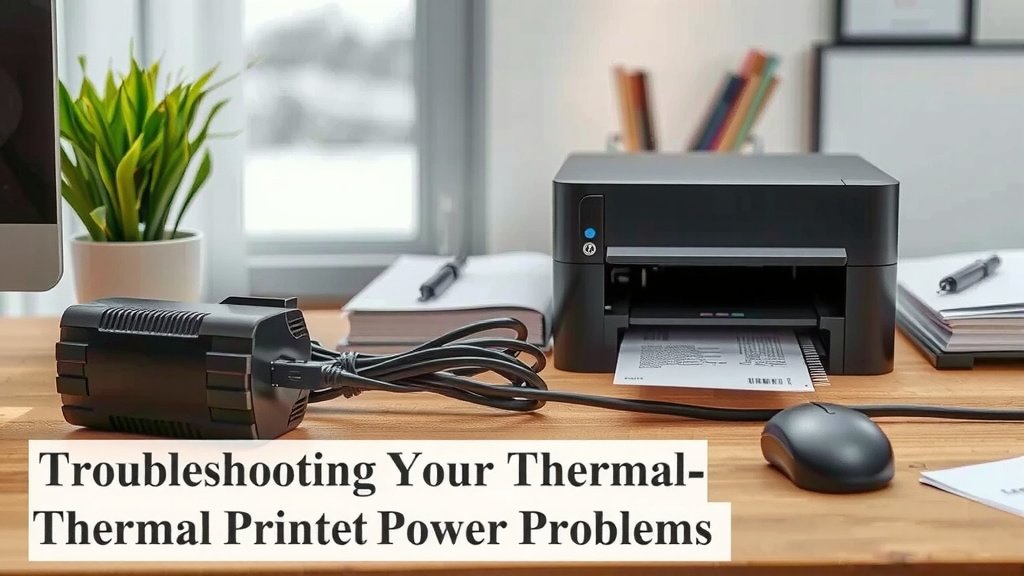
A PSU is an external box or brick that converts the wall outlet’s AC power into the DC power your thermal printer needs. Many printers come with a dedicated power adapter that looks like a small black box with a cable.
Signs of a Failing PSU
You might notice a few things if your PSU is on its way out. The most obvious is the printer simply refusing to turn on. Sometimes, the printer might turn on briefly and then shut off. You might also see an odd smell or feel the power adapter getting unusually hot.
How to Test Your Power Supply
Testing the PSU often requires a multimeter. This is a tool that measures voltage. You’d unplug the PSU from the wall and the printer. Then, you’d set your multimeter to DC voltage. You’d carefully touch the probes to the pins inside the power connector that plugs into your printer. If the voltage reading is significantly different from what’s printed on the PSU label, it’s likely faulty.
However, many users find it easier to simply try a known working replacement. If you have access to an identical power supply, swapping it out is a quick test. We found this is often faster than using a multimeter if you’re not used to electronics.
Using a Replacement Power Supply
When buying a replacement, make sure it has the exact same voltage (V), amperage (A), and connector type as the original. Using the wrong one can damage your printer. Always check the label on your old power supply for these details.
Many experts recommend using OEM (Original Equipment Manufacturer) power supplies. These are made by the printer manufacturer. They are designed to meet specific power requirements. Aftermarket options can work, but you need to be extra careful about their specifications.
Examining Cable Connections
Sometimes, the problem isn’t the power supply itself, but the journey the power takes to get there. Loose or damaged cables are frequent culprits.
Securing the Power Cord
First, check the power cord that goes from the wall outlet to the power supply unit. Ensure it’s pushed firmly into both the outlet and the PSU. A slight wiggle can sometimes cause a power interruption.
Checking the Printer’s Power Port
Next, look at the port on the back of your thermal printer where the power cable plugs in. Is it damaged? Are there any bent pins? Sometimes, the port itself can become loose from the printer’s internal board. Make sure the cable is seated securely here as well.
Inspecting the Cable Itself
Gently inspect the entire length of the power cable. Look for any cuts, kinks, or fraying. Damaged insulation can expose wires and lead to power issues or even safety hazards. If you see any damage, the cable needs to be replaced.
Understanding Power Adapter Compatibility
Not all power adapters are created equal. Using the wrong one is like trying to fit a square peg in a round hole – it just won’t work, and it could cause damage.
Voltage and Amperage: The Critical Duo
Voltage (V) is like the water pressure in your pipes. Amperage (A) is like the width of the pipes. Your printer needs a specific amount of both. Too little voltage means it won’t power up. Too little amperage means it might not run correctly under load, leading to shutdowns.
Too much voltage can fry your printer’s components. Too much amperage isn’t usually a problem because devices only draw what they need. However, always match the amperage or exceed it slightly. Never go below the recommended amperage.
Polarity Matters Too
The connector on your power adapter has a center pin. This pin is either positive (+) or negative (-). This is called polarity. Your printer is designed for a specific polarity. If you use an adapter with the wrong polarity, it can cause immediate damage. The symbol for polarity is usually found on the power adapter label.
Connector Size and Shape
Even if the voltage, amperage, and polarity are correct, the plug needs to fit snugly into the printer’s power port. Many manufacturers use different-sized barrel connectors. A loose connection will prevent power delivery. A connector that’s too large won’t fit at all.
We found that many printer manufacturers list the exact specifications for their recommended power adapters in the user manual. If you’ve lost your manual, a quick search on the manufacturer’s website for your printer model should provide this information.
| Specification | Importance | Action |
|---|---|---|
| Voltage (V) | Critical – Too high can damage the printer. | Must match printer requirement exactly. |
| Amperage (A) | Important – Must meet or exceed printer’s need. | Use same or higher amperage rating. |
| Polarity | Critical – Must match the printer’s input. | Check the symbol on the adapter and printer. |
| Connector Type | Essential – Must fit the port. | Ensure the plug size and shape are correct. |
Internal Component Checks (Advanced)
If you’ve tried all the external checks and your printer still won’t power on, the issue might be internal. This is less common but still possible.
Loose Internal Wiring
Sometimes, during shipping or even just over time, internal wires can become dislodged from their connections on the printer’s main board. If you’re comfortable opening the printer casing (and your warranty allows it), you might be able to visually inspect these connections.
Faulty Mainboard or Power Regulator
The main logic board or the power regulator component on that board could be damaged. These components manage the flow of electricity within the printer. If they fail, the printer won’t receive power. Repairing these often requires specialized knowledge and equipment.
Many experts advise that if you suspect an internal component failure, it’s usually best to contact the manufacturer’s support or a qualified repair technician. Attempting internal repairs without experience can void your warranty and potentially cause more damage.
Troubleshooting Checklist
Let’s run through a quick checklist to make sure you haven’t missed anything simple.
- Is the power outlet working? Try plugging in another device.
- Is the power cord fully inserted into the wall and the power supply?
- Is the power supply cable securely plugged into the printer?
- Does the power adapter match the voltage, amperage, and connector requirements?
- Is the power adapter itself getting unusually hot or smelling burnt?
- Have you tried a different, known-working power supply that matches the specs?
Conclusion
Dealing with thermal printer power issues can be frustrating, but as we’ve seen, most problems are surprisingly solvable. You’ve learned how to check your power supply unit, ensure all cable connections are secure, and understand the critical specifications of power adapters. Remember, a functioning printer is key to smooth operations.
If you’ve gone through these steps and are still facing power problems, it’s often best to consult your printer’s manual or reach out to the manufacturer. Getting your printer back online quickly is our main goal, so take these steps and get back to printing!
Frequently Asked Questions
What if my thermal printer’s power adapter feels unusually hot?
If your power adapter is getting excessively hot to the touch, or if you smell a burning odor, this is a strong indicator of a problem. You should immediately unplug the adapter and the printer to prevent further damage or a potential fire hazard. It’s likely time to replace the power adapter.
Can I use a power adapter from a different printer?
You can, but only if it perfectly matches the original adapter’s voltage, amperage, and connector type. Using an adapter with incorrect specifications, especially voltage, can quickly damage your printer. Always double-check these details before swapping adapters.
My printer turns on for a second then shuts off. What could be wrong?
This intermittent power issue often points to a problem with the power supply unit (PSU) or a loose connection. Your printer might not be receiving stable power. Try reseating all cable connections and, if possible, test with a known good power supply that meets the printer’s exact specifications.
How do I find the correct power adapter specifications for my printer model?
The best place to find this information is in your thermal printer’s user manual. If you no longer have the manual, visit the printer manufacturer’s official website. They usually have a support or downloads section where you can find manuals for your specific model.
Is it safe to open my thermal printer to check for loose wires?
Opening your printer casing can be risky, especially if it’s still under warranty, as it might void the warranty. If you’re not experienced with electronics, we recommend leaving internal checks to professionals. Focus on external checks and power supply verification first.