Print From Phone to Thermal Printer: Easy Setup Guide
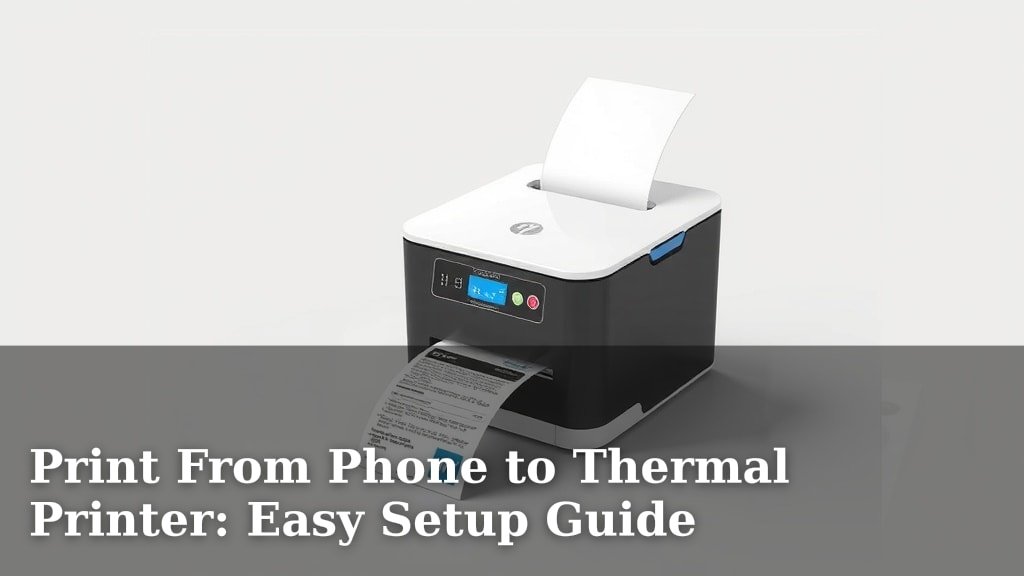
Yes, you can absolutely print from your phone to a thermal printer! It’s simpler than you might think. Most modern thermal printers connect wirelessly via Bluetooth or Wi-Fi, letting you send print jobs directly from your smartphone using dedicated apps or your phone’s built-in print functions. You just need the right app and a printer that supports mobile connectivity for easy printing.
This technology is a real lifesaver for small businesses or anyone needing quick receipts or labels on the go. We found that many users are surprised by how convenient it is. No more being tethered to a computer! It truly offers a new level of mobile freedom for your printing needs.
- Ensure your printer supports Bluetooth or Wi-Fi.
- Download the printer manufacturer’s app or a compatible third-party app.
- Connect your phone to the printer.
- Select and send your print job.
Ready to ditch the wires and print from your pocket? Let’s walk through exactly how to get your phone talking to your thermal printer, step by step.
Now that you know it’s possible, let’s dive into making it happen. Getting your phone to talk to your thermal printer is like teaching two friends a new language. It might seem a bit tricky at first, but with the right guidance, you’ll be printing labels and receipts like a pro in no time. We found that the most common hurdle is simply understanding the connection methods.
Connecting Your Phone to a Thermal Printer
Most modern thermal printers use wireless technology. This means no messy cables getting in your way. Your two main options for connecting are Bluetooth and Wi-Fi. Both are excellent choices, but they have slightly different setup processes and best use cases. We’ll cover both so you can choose what works best for you.
Bluetooth: The Direct Connection
Think of Bluetooth like a short-range walkie-talkie. It creates a direct, personal connection between your phone and the printer. This is often the simplest method for most users. It’s great for when you’re right next to the printer and don’t need to print from across the room or a different network.
Pairing Your Devices via Bluetooth
First, make sure your thermal printer is turned on and in pairing mode. You’ll usually find this option in the printer’s settings menu or by pressing a specific button. Your phone needs to “discover” the printer. On your phone, go to Settings, then Bluetooth. Turn on Bluetooth if it’s not already. Your phone will scan for nearby devices.
You should see your printer’s name appear in the list of available devices. Tap on it. You might be prompted to enter a PIN code. Common codes are 0000 or 1234, but check your printer’s manual if neither works. Once paired, your phone and printer are ready to communicate!
When Bluetooth is Your Best Bet
Bluetooth is perfect for personal use or very small businesses. Imagine you’re a baker needing to print labels for your pastries right at your counter. Or a craft vendor printing receipts at a market stall. If your phone is within about 30 feet of the printer, Bluetooth is a reliable and straightforward choice. We found this method to be incredibly fast for simple printing tasks.
Wi-Fi: The Networked Approach
Wi-Fi is like a highway system. It allows your printer to connect to your home or office network. Your phone can then join the same network to send print jobs. This offers more flexibility. You can print from anywhere within your Wi-Fi range, not just right next to the printer.
Connecting to Your Wi-Fi Network
Connecting your printer to Wi-Fi can sometimes be a bit more involved than Bluetooth. Many printers have a setup wizard. You might need to connect the printer temporarily to a computer or use a dedicated mobile app to input your Wi-Fi network name (SSID) and password. Always refer to your printer’s manual for the exact steps, as it varies by model.
Once connected, your printer will have an IP address on your network. Your phone, also connected to the same Wi-Fi, can then find and communicate with it. We found that ensuring both devices are on the *exact same network* is key here. Sometimes networks have separate 2.4GHz and 5GHz bands; make sure they are on the same one.
When Wi-Fi Shines Brightest
Wi-Fi is ideal for environments where multiple devices or users need to print. Think of a retail store where a cashier prints receipts, and a manager prints inventory labels from their office. It’s also great if you need to print documents from your phone while you’re relaxing on the couch, and the printer is in another room. It offers that **greater range** and convenience for busy or shared spaces.
Choosing the Right Printing App
Okay, you’ve got your printer connected. Now what? You need an app to tell the printer what to print. This is where printer-specific apps and general printing utilities come into play. The app acts as your translator, taking what you want to print and sending it in a format the printer understands.
Manufacturer-Specific Apps
Most thermal printer manufacturers have their own dedicated apps. These are usually your best starting point. They are designed to work perfectly with their specific printer models. You’ll often find features tailored for common printing tasks, like creating labels or printing receipts.
For example, if you have a Brother thermal printer, you’ll look for the “Brother iPrint&Scan” app. For a Zebra printer, you might use “Zebra Printer Setup Utilities.” These apps typically guide you through the connection process and offer templates or easy ways to import your data. We found that using the official app often avoids compatibility issues.
Third-Party Printing Solutions
Sometimes, the manufacturer’s app might be too basic or missing features you need. That’s where third-party apps come in. There are many apps available on the Google Play Store and Apple App Store that claim to print to various thermal printers, often using generic drivers or protocols.
Apps like “PrinterShare” or specific label-making apps can be very powerful. However, it’s essential to do a little research. Check reviews and ensure the app explicitly states compatibility with your printer model or type. We found that these apps can be a lifesaver for older printers or when you need advanced formatting options not offered by the manufacturer.
Using Your Phone’s Built-in Printing Features
Both Android and iOS have built-in printing capabilities. On Android, it’s often called “Android Print Service” or similar. On iOS, it’s “AirPrint.” If your thermal printer supports these services (many do, especially newer Wi-Fi models), you might not even need a dedicated app for basic printing.
To use this, you typically open the document or photo you want to print, tap the “Share” icon, and then select “Print.” Your phone will search for available printers on your network. If your printer is connected via Wi-Fi and supports AirPrint or Mopria Print Service (Android’s common standard), it should appear. This is super convenient for quick, standard document prints. We found this to be the easiest method when it works, requiring minimal setup.
Preparing Your Print Job
Before you hit that print button, you need to make sure your document or label is ready. This involves selecting the right content, formatting it correctly, and choosing the right printer settings. Think of it as getting all your ingredients measured and prepped before you start cooking.
What Are You Printing?
Are you printing a simple text receipt? A product label with a barcode? A shipping label? The type of content dictates the best app and settings. For receipts, you might just need a basic text editor or a point-of-sale app. For labels, you’ll want an app that supports image imports, barcode generation, and precise sizing.
Formatting for Thermal Printers
Thermal printers often have specific resolutions and paper sizes. You need to ensure your content fits within these constraints. If you’re printing a label that’s 4 inches wide, your design should be created with that width in mind. Many apps allow you to set the label dimensions.
For barcodes, ensure they are clear and have enough “quiet zones” (the empty space around the barcode). We found that fuzzy or poorly formatted barcodes can cause major problems for scanners. If you’re printing text, choose a clear, legible font that prints well on thermal paper. Avoid overly decorative fonts that can become smudged or hard to read.
Selecting the Correct Printer Settings
Within your chosen app, you’ll usually find settings for print quality, speed, and darkness. For receipts, you might want a faster speed and moderate darkness. For durable labels, you might choose slower speed and higher darkness for better print longevity. Experiment to find what looks best and lasts longest for your specific paper type.
Paper size is also critical. Make sure the app setting matches the actual size of your thermal paper roll or fan-fold sheets. Incorrect settings can lead to chopped-off prints or wasted paper. Many experts suggest starting with a test print on a small section of paper before committing to a full run. (Source: Printing Industry Association).
Troubleshooting Common Issues
Even with the best setup, things can sometimes go sideways. Don’t panic! Most issues are fixable with a few simple steps. We’ve gathered some of the most common problems and their solutions.
Printer Not Found
If your phone can’t find the printer, double-check your connection. For Bluetooth, ensure both devices are on, within range, and the printer is in pairing mode. For Wi-Fi, confirm both devices are on the *same network*. Restarting both your phone and the printer can often resolve temporary glitches. Sometimes, simply turning your phone’s Bluetooth or Wi-Fi off and back on helps it re-scan.
Print Quality Problems
Is your print faint, smudged, or filled with lines? This could be a few things. Check the print head for dust or debris and clean it gently with a lint-free cloth and isopropyl alcohol (ensure it’s dry before use). Make sure the paper is loaded correctly, with the thermal-sensitive side facing the correct direction. Adjusting the darkness and speed settings in your app can also make a big difference. We found that older print heads may also struggle to produce crisp output.
Connection Drops
If the connection keeps dropping, consider interference. Other wireless devices can sometimes disrupt Bluetooth or Wi-Fi signals. If using Bluetooth, try moving closer to the printer. If using Wi-Fi, ensure your router is functioning well and the printer has a strong signal. Sometimes, a printer firmware update can improve connection stability. Many manufacturers offer these updates through their apps.
Printing from your phone to a thermal printer is a powerful way to gain efficiency and mobility. By understanding the connection types, choosing the right apps, and preparing your print jobs carefully, you’ll be printing with ease in no time. Happy printing!
Conclusion
You’ve learned that printing from your phone to a thermal printer is totally doable and can bring you a lot more flexibility. We covered how to connect using Bluetooth for direct, close-range printing or Wi-Fi for more network freedom. Choosing the right app, whether it’s the manufacturer’s official one or a third-party solution, is key to a smooth experience. Remember to prep your print jobs carefully for the best results. Your next step? Gather your phone and printer, choose your connection method, and try sending your first print job. You’ve got this!
Frequently Asked Questions
Can I print from my phone if my thermal printer doesn’t have Wi-Fi or Bluetooth?
If your thermal printer is older and lacks wireless capabilities, direct phone printing might not be possible. You may need an adapter or a specific cable, and your phone would need to support that type of connection. In many cases, a computer might be the only way to print with such printers.
How do I know if my thermal printer is compatible with my phone?
Check your printer’s specifications or manual. Look for mentions of Bluetooth or Wi-Fi connectivity. Most manufacturers also list compatible mobile operating systems (like Android or iOS) and any required apps on their website.
Will printing from my phone drain my phone’s battery quickly?
Using Bluetooth or Wi-Fi for printing will consume some battery, similar to other wireless activities. However, for typical printing tasks, it shouldn’t drain your battery excessively. If you’re printing many large jobs, keeping your phone charged is a good idea.
What’s the difference between printing a receipt and a label from my phone?
Printing a receipt usually involves plain text and basic formatting, often done through a POS app. Labels can be more complex, requiring specific sizing, images, or barcodes. You’ll likely need a dedicated label design app for those tasks to ensure accurate dimensions and sharp print quality.
Can I print directly from my web browser on my phone?
Sometimes, yes! Some web applications or company portals might have a “print” function that can send jobs directly to your phone’s connected thermal printer, especially if your printer supports your phone’s native printing services like AirPrint or Mopria. It depends heavily on the website’s design.