Thermal Printer Overheating: Top Causes Explained
Your thermal printer is overheating because it’s working overtime, or maybe something is blocking its ventilation. Common culprits include heavy print jobs, a dusty environment, or a faulty cooling fan. Pinpointing the cause is the first step to getting your printer back on track.
When a thermal printer gets too hot, it can lead to poor print quality, like faded or blank labels. It might even shut down completely to protect its delicate components. Understanding why this happens can save you from costly repairs and frustrating downtime. We’ve seen this happen a lot.
TL;DR:
- Overheating is often due to heavy use or blocked vents.
- Dust buildup can significantly impact cooling.
- A non-working fan is a major red flag.
- Extreme temperatures in your workspace matter.
- Printing too quickly can overload the system.
Let’s walk through the common reasons your thermal printer might be getting a bit too toasty and what you can do about it.
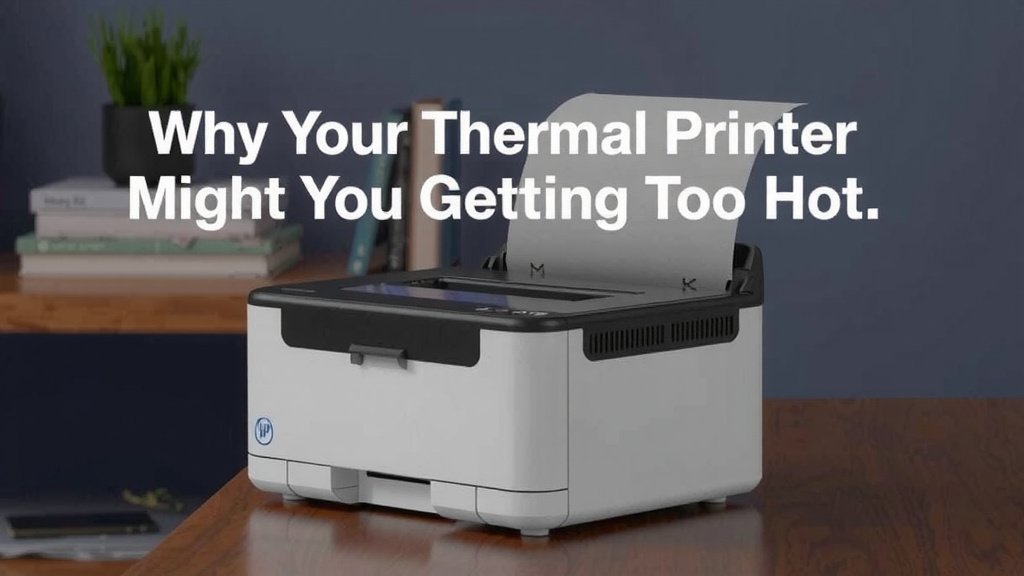
Why Your Thermal Printer Might Be Getting Too Hot
Is your thermal printer feeling a bit warm to the touch? You’re not alone. Several factors can cause these hardworking machines to overheat. Understanding these common reasons can help you keep your printer running smoothly and prevent unexpected shutdowns.
Heavy Print Loads and Continuous Operation
One of the most frequent culprits behind an overheating thermal printer is simply working it too hard. Imagine running a marathon without any breaks; your body would definitely get hot! Your printer is similar. When you send it a large batch of labels or receipts to print continuously, its internal components, especially the print head, generate a lot of heat. The print head uses an electric current to heat tiny elements that transfer ink or melt toner onto the paper. This process is inherently heat-producing. If the printer doesn’t have enough time to cool down between print jobs, or if the jobs are extremely long, the heat can build up to an unsafe level. This is especially true for printers that aren’t designed for very high-volume, continuous printing.
Poor Ventilation and Blocked Airflow
Just like you need fresh air to stay cool, your printer needs good airflow. Most thermal printers have vents designed to let hot air escape and cooler air circulate. If these vents are blocked, the heat has nowhere to go. This is a super common issue. Think about placing your laptop on a soft blanket – it often overheats because the vents get covered. The same principle applies to your printer. If it’s crammed into a tight space, pushed against a wall, or has items stacked too close to its sides or back, the airflow is compromised. Dust accumulation can also clog these vents, acting like tiny insulation blankets, trapping heat inside.
Dust and Debris Accumulation
Dust is the silent killer of electronics, and thermal printers are no exception. Over time, dust and debris from the environment can settle on and inside your printer. This accumulation is particularly problematic around the print head and the ventilation areas. The print head, being the primary heat-generating component, can become insulated by dust, making it harder to dissipate heat effectively. Dust also acts as an insulator around other internal components and can clog cooling fans, if your printer has one. Regular cleaning is essential, especially if your printer is in a workshop, warehouse, or any environment with a lot of airborne particles.
Environmental Temperature Extremes
The temperature of the room where your printer operates plays a significant role. If your printer is located in an area that’s already very hot, like a non-air-conditioned warehouse in the summer or near a heat-generating piece of equipment, it will struggle to stay cool. The ambient temperature directly affects how efficiently the printer can cool itself. Many manufacturers specify an optimal operating temperature range for their printers. Operating outside this range, particularly in high heat, can lead to overheating. We found that keeping the workspace within a comfortable room temperature, typically between 65°F and 80°F (18°C to 27°C), is often recommended.
Issues with the Cooling Fan (If Applicable)
Not all thermal printers have cooling fans, but those that do can run into problems if the fan malfunctions. The fan’s job is to actively pull cool air in and push hot air out, significantly aiding the cooling process. If the fan is dusty, obstructed, or has failed entirely, it can’t do its job. You might hear unusual noises from the fan area or notice a complete lack of airflow if it’s not working. A faulty fan is a serious issue that needs immediate attention to prevent internal damage from overheating. Some printers will even shut themselves down if they detect a fan failure to protect themselves.
Printing Speed Settings
Did you know that how fast your printer prints can impact its temperature? Many thermal printers allow you to adjust the print speed. While printing faster can be tempting when you have a lot to get done, pushing the printer to its highest speed setting can sometimes lead to overheating. At maximum speeds, the print head is cycling on and off very rapidly, generating heat almost continuously. If your printer is set to print at its fastest rate on very long print jobs, it might not have adequate time to cool down between print passes. We suggest trying a slightly slower print speed if you frequently encounter overheating during long print runs.
Troubleshooting and Solutions for Printer Overheating
Now that we’ve explored the common causes, let’s look at practical steps you can take to resolve these overheating issues. Getting your printer back to optimal performance is usually achievable with a few simple checks and adjustments.
Relieving the Print Load
If you’re printing very large jobs, consider breaking them down into smaller batches. Instead of sending 500 labels at once, try printing them in two or three smaller groups. This gives the printer a short break between batches, allowing it to cool down slightly. It’s like pausing a movie to stretch your legs – it makes the overall experience better. This simple change can make a big difference in preventing heat buildup. This approach is often recommended by printer manufacturers to extend the life of the device.
Ensuring Proper Ventilation and Cleaning
This is where proactive maintenance really pays off. Make sure your printer has plenty of space around it. Aim for at least 4-6 inches of clearance on all sides and the back. Keep the area around the printer clear of other objects and debris. Regularly clean the printer’s vents using compressed air. You can also gently wipe down the exterior with a soft, dry cloth. Pay special attention to any air intake or exhaust ports. For the print head, use a specialized thermal printer cleaning pen or a lint-free cloth lightly dampened with isopropyl alcohol, but only when the printer is off and cool. Many service guides suggest this for optimal print quality and printer health.
Check Your Environment
Evaluate the temperature and cleanliness of your workspace. If your printer is in a hot environment, see if you can relocate it to a cooler, more climate-controlled area. Using fans or air conditioning can help maintain a stable, cooler temperature. If your environment is particularly dusty, consider implementing air filters or cleaning protocols for the area where the printer is housed. Controlling the environmental factors is a key part of preventing equipment failure.
Performing a Cooling Fan Check
If your printer has a cooling fan, listen to it. When the printer is running or has just finished a job, you should be able to hear or feel air movement from the fan vents. If you don’t hear anything, or if the fan sounds strained or makes unusual noises, it might be failing. You can try gently cleaning the fan blades with compressed air, ensuring the printer is powered off first. If the fan issue persists, it will likely need to be replaced. Manufacturers often provide diagnostic tools or codes that can help identify fan problems.
Adjusting Print Speed and Darkness Settings
Experiment with your printer’s settings. Try reducing the print speed slightly. Often, a small decrease in speed results in a noticeable drop in operating temperature without significantly impacting your workflow. You might also be able to adjust the print darkness. Higher darkness settings require more energy and thus generate more heat. If your labels are printing too dark anyway, reducing this setting can help. Consult your printer’s manual for specific instructions on how to change these settings; they are usually found in the printer driver software or on the printer’s control panel.
Cool-Down Periods
Allowing the printer to rest and cool down between extended print sessions is crucial. If you know you have a massive job coming up, plan for it. You might print half the job, let the printer sit for 15-30 minutes, and then print the second half. This “cool-down period” lets the internal components return to a safer operating temperature. It’s a simple, yet very effective, way to prevent overheating, especially for older or heavily used printers. This practice is a cornerstone of preventative maintenance for heat-sensitive electronics.
Printer Maintenance Checklist
To keep your thermal printer running at its best and prevent overheating, consider following this simple checklist:
- Regularly clean vents with compressed air.
- Ensure adequate space for airflow around the printer.
- Break large print jobs into smaller batches.
- Check the cooling fan for proper operation.
- Wipe down the exterior and print head periodically.
- Avoid placing the printer in extremely hot environments.
Conclusion
Keeping your thermal printer cool is key to reliable performance. You’ve learned that heavy print loads, blocked vents, dust, and even your workspace temperature can cause overheating. A simple check of your printer’s environment and settings can prevent frustrating shutdowns and print quality issues.
Don’t let a hot printer slow you down! Start by ensuring your printer has plenty of breathing room and giving it short breaks between those big jobs. A little attention now can save you a lot of headaches later.
Frequently Asked Questions
How often should I clean my thermal printer to prevent overheating?
You should aim to clean your thermal printer’s vents and print head at least once a month. If you operate in a dusty environment, you might need to clean it more frequently, perhaps even weekly. Regular cleaning is one of the best ways to maintain airflow and prevent heat buildup.
Can printing labels too dark make my printer overheat?
Yes, printing at maximum darkness settings can contribute to overheating. Higher darkness levels require more energy from the print head, which in turn generates more heat. If your labels are already printing dark enough, reducing this setting can help keep your printer cooler.
My printer is in a cool room, but it still overheats. What else could it be?
If your environment is cool, check for other common issues like blocked ventilation or dust accumulation. Even in a clean room, dust can settle over time. Also, consider if you’re pushing the printer with very large, continuous print jobs or if the cooling fan (if applicable) is functioning correctly.
Is it normal for a thermal printer to feel warm after printing?
It’s normal for a thermal printer to feel slightly warm to the touch after it’s been printing, especially after a long print job. This is because the print head generates heat during operation. However, if it’s too hot to comfortably touch, or if it’s consistently shutting down due to heat, that indicates a problem.
What should I do if I suspect the cooling fan in my printer has failed?
If your printer has a fan and you suspect it’s not working, first try cleaning it with compressed air (with the printer powered off). Listen for any unusual noises or lack of airflow. If cleaning doesn’t help, and the printer continues to overheat, you’ll likely need to have the fan replaced by a qualified technician or contact the manufacturer.