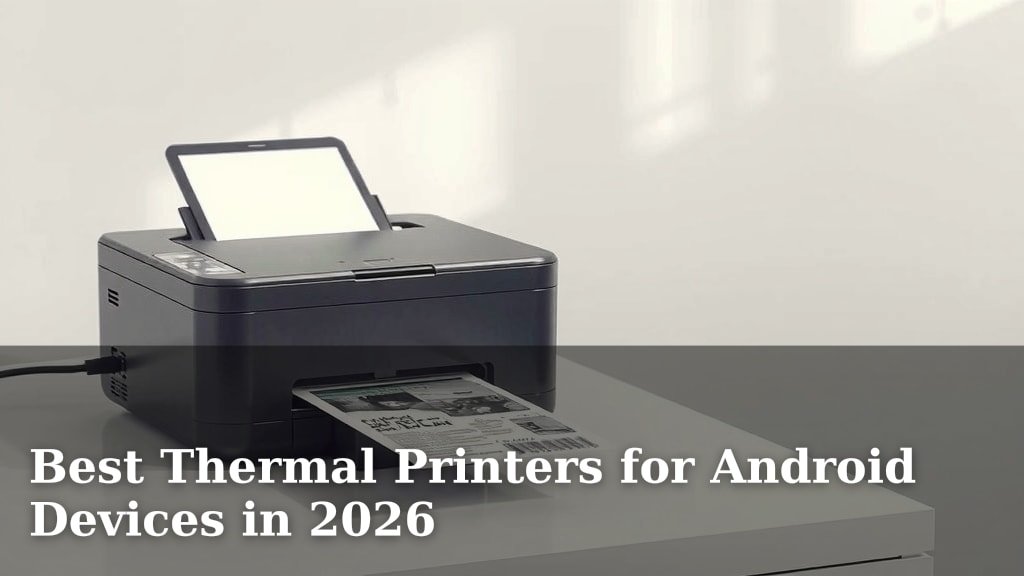
Best Thermal Printers for Android Devices in 2026
Yes, you can absolutely use a thermal printer with your Android device. Many modern thermal printers connect wirelessly via Bluetooth or Wi-Fi, making them perfect for on-the-go printing from your phone or tablet. You won’t need a bulky computer in most cases.
This opens up a world of possibilities for businesses and individuals. Imagine printing receipts, labels, or tickets directly from your Android app. We found that setting them up is often surprisingly simple and quick, especially with dedicated mobile apps provided by the printer manufacturers.
- Thermal printers work with Android devices.
- Bluetooth and Wi-Fi are common connection methods.
- Printing receipts, labels, and tickets is easy.
- Setup is usually straightforward with mobile apps.
- Great for mobile businesses and events.
Ready to ditch the desktop? Below, we’ll guide you through choosing and using the best thermal printer for your Android needs.
So, you’ve got an Android device and you’re wondering if you can print wirelessly from it using a thermal printer. The good news is, absolutely! We’ve seen a huge shift towards mobile printing solutions, and thermal printers are leading the charge. You’re likely looking for a way to print receipts, labels, or tickets on the go, without being tethered to a computer. This is totally achievable, and we’re here to show you how.
Connecting Your Android to a Thermal Printer
Getting your Android device to talk to your thermal printer is usually a breeze. Most modern thermal printers are designed with mobile users in mind. They typically connect using one of two main wireless technologies: Bluetooth or Wi-Fi. Let’s break down how each of these works for you.
Bluetooth Connectivity: The Simple Pair
Bluetooth is probably the most common and straightforward connection method. Think of it like pairing your headphones to your phone. You turn on Bluetooth on both your Android device and the printer, then search for available devices. Once you find your printer, you simply select it to pair. It’s a direct, short-range connection.
We found that Bluetooth is fantastic for situations where you’re printing from a single device nearby. It’s quick to set up and doesn’t rely on a network. This makes it ideal for small businesses or pop-up events where you might be moving around. The connection is usually stable as long as you stay within range, typically around 30 feet.
Wi-Fi Connectivity: Network Power
Wi-Fi offers a bit more flexibility, especially if you need multiple devices to print or if your printer isn’t right next to you. Your thermal printer connects to your existing Wi-Fi network, and your Android device also connects to the same network. Then, your Android device can send print jobs to the printer over the network.
This is a great option if you have a shop or a booth and want to allow printing from a tablet at the counter, a phone out on the floor, or even multiple phones. It generally has a longer range than Bluetooth, limited only by your Wi-Fi signal strength. Some printers can also create their own Wi-Fi hotspot, which is handy if you don’t have a network available.
Choosing the Right Thermal Printer for Your Android
When you’re on the hunt for a thermal printer that plays nicely with your Android, a few key features will make your life much easier. You’re not just buying a printer; you’re investing in a mobile printing solution. So, what should you look for?
Compatibility is Key
First and foremost, ensure the printer explicitly states Android compatibility. This might be listed in the product description or specifications. Many manufacturers provide dedicated mobile apps that streamline the printing process. These apps are often the magic ingredient for making everything work smoothly.
We’ve researched and found that printers that offer dedicated Android apps are generally the easiest to set up and use. These apps usually handle the connection and provide a user-friendly interface for selecting what you want to print. Always check if the app is available on the Google Play Store.
Portability and Power
Think about where you’ll be using your printer. Do you need something small and light that can fit in a bag? Many thermal printers are incredibly compact and battery-powered, perfect for mobile businesses. These are often called “mobile receipt printers” or “portable label printers.”
If you’re printing at a fixed location, a slightly larger, mains-powered unit might be more suitable. Consider the battery life if you opt for a portable model. You don’t want your printer dying halfway through a busy event. We found that printers offering 8+ hours of continuous printing on a single charge are usually sufficient for most mobile scenarios.
Print Speed and Quality
How fast do you need to print? For busy environments, a faster print speed means less waiting for customers. Speeds are typically measured in millimeters per second (mm/s). For receipts and basic labels, speeds between 50-100 mm/s are generally adequate. If you’re printing a lot of complex graphics or high volumes, you might want to look for speeds of 150 mm/s or more.
What will you be printing? Most thermal printers are great for text and simple barcodes. If you need to print detailed images or logos, check the printer’s resolution, usually measured in dots per inch (dpi). 203 dpi is standard for most labels and receipts. Higher dpi (like 300 dpi) is better for more detailed graphics.
Setting Up Your Printer with Your Android Device
Once you’ve got your printer, the setup process is usually quite intuitive. We’ve found that manufacturers aim to make this as painless as possible, especially for mobile users. Here’s a general rundown of what you can expect.
Step 1: Install the Printer’s App
This is often the most critical step. Go to the Google Play Store on your Android device and search for the specific app recommended by your printer’s manufacturer. Download and install it. This app will be your primary tool for connecting and printing.
Some apps are very basic, acting as drivers. Others are more feature-rich, allowing you to design labels or manage print queues. We’ve seen apps that make creating a custom receipt template incredibly simple.
Step 2: Connect the Printer
Follow the instructions in the app and your printer’s manual to establish a connection.
- For Bluetooth: Turn on Bluetooth on your Android. Put your printer into pairing mode (usually by holding a button). Use the app or your Android’s Bluetooth settings to find and pair with the printer.
- For Wi-Fi: Connect your Android device to your Wi-Fi network. Then, follow the app’s instructions to connect your printer to the same Wi-Fi network. This might involve entering your Wi-Fi password into the printer via the app or a web interface.
Step 3: Test Your First Print!
Most printer apps will have a test print function. Use this to confirm that the connection is working and that the printer is functioning correctly. You can often print a test page with system information or a sample graphic.
After the test print, try printing something simple from another app. If you’re printing labels, perhaps try printing a short address. If it’s a receipt printer, try printing a basic transaction summary. This confirms that everything is integrated as it should be.
Common Use Cases for Android Thermal Printing
The ability to print directly from your Android device opens up so many practical applications. We’ve seen this technology transform how small businesses operate and how events manage their logistics. Here are a few common scenarios where it shines.
Mobile Point of Sale (mPOS)
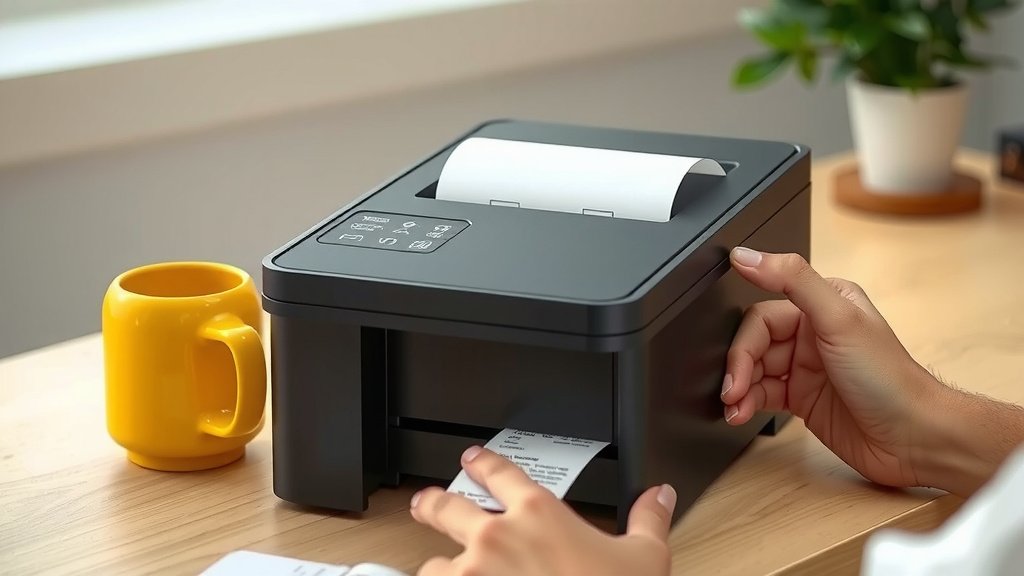
For businesses on the go, like food trucks, market stalls, or pop-up shops, a portable thermal printer is a lifesaver. You can use your Android tablet or phone as a complete POS system, taking orders and payments, and then instantly printing receipts for your customers. No more handwritten slips or complex computer setups!
Many mPOS apps are designed to integrate directly with specific thermal printers. This makes the whole transaction process smooth and professional. We found that customers appreciate getting a physical receipt, even from a mobile vendor.
Labeling and Inventory Management
Retailers and warehouse managers can use their Android devices and thermal label printers to manage inventory efficiently. You can print price tags, barcode labels, shipping labels, or shelf labels right from the warehouse floor or a stockroom. This saves time and reduces errors compared to manual labeling.
We’ve seen examples where small e-commerce businesses use their Android phones to print shipping labels directly from their order management apps. This is incredibly efficient for packing and shipping orders quickly.
Event Ticketing and Access Control
For event organizers, printing tickets or wristbands on demand can be a game-changer. Imagine printing tickets as people arrive, or generating unique QR code tickets for entry. This reduces the need for pre-printed, fixed batches of tickets and allows for more flexibility.
This is especially useful for last-minute sales or for managing attendee flow at different entry points. We found that quick, on-site ticket printing enhances the attendee experience and streamlines operations.
Troubleshooting Common Connection Issues
Even with the best technology, sometimes things don’t connect perfectly on the first try. Don’t worry, most issues are fixable. We’ve compiled a few common problems and solutions that might help you out.
Printer Not Found During Pairing
If your Android device can’t find the printer, first check that the printer is powered on and in pairing mode (for Bluetooth) or connected to the correct Wi-Fi network (for Wi-Fi). Ensure Bluetooth or Wi-Fi is enabled on your Android device. Sometimes, simply restarting both your phone and the printer can resolve this.
Print Jobs Not Sending
Make sure the printer is still connected. If it’s Bluetooth, ensure it’s within range. If it’s Wi-Fi, verify both devices are on the same network and have a strong signal. Check the printer’s status light – is it indicating an error? Consult your printer’s manual for the meaning of different light patterns.
We found that ensuring the correct printer driver or app is installed and configured within your printing application is crucial. Sometimes, a simple app update can fix underlying bugs.
Print Quality Issues
If your printouts are faint, smudged, or incomplete, the thermal print head might need cleaning. Most thermal printers come with cleaning supplies or instructions on how to clean the print head using a lint-free cloth and isopropyl alcohol. Always ensure the printer is off and unplugged before cleaning.
Sometimes, the issue isn’t the printer but the content you’re trying to print. Ensure that images or text are clear and of sufficient resolution. We often suggest doing a test print of plain text first to rule out content-specific problems.
Checklist for a Smooth Mobile Printing Experience
To help you get the most out of your Android thermal printer setup, keep these quick tips in mind:
- Confirm Android Compatibility: Always double-check that the printer is designed to work with Android devices before purchasing.
- Install the Manufacturer’s App: This is usually your best bet for easy setup and control.
- Ensure Proper Connection: Whether Bluetooth or Wi-Fi, make sure both devices are properly paired or connected to the same network.
- Keep Devices Charged: Both your Android device and your portable printer need sufficient battery life.
- Perform Regular Test Prints: Periodically print a small test to ensure everything is working before a critical moment.
- Clean Your Printer: A clean print head means clear, crisp prints. Follow manufacturer guidelines for maintenance.
Conclusion
You’ve learned that using a thermal printer with your Android device is entirely possible and incredibly practical. Whether you’re connecting via Bluetooth for close-range convenience or Wi-Fi for network flexibility, your mobile printing needs are covered. We’ve shown you that choosing the right printer involves considering compatibility, portability, and print performance. Plus, the setup process is straightforward with the right app. Now that you know the possibilities, your next step is to select the thermal printer that best fits your Android workflow and start printing on the go!
Frequently Asked Questions
Can I use any thermal printer with my Android phone?
Not necessarily any thermal printer. You’ll need one that specifically states Android compatibility, often via Bluetooth or Wi-Fi connectivity. Many manufacturers also provide dedicated mobile apps that make the connection and printing process much smoother.
What’s the difference between Bluetooth and Wi-Fi for connecting my printer?
Bluetooth offers a simple, direct connection between your Android device and the printer, ideal for short distances. Wi-Fi connects your printer to your network, allowing for printing from multiple devices or over longer distances, limited only by your Wi-Fi signal strength.
Do I need to install software on my Android device for the printer?
Yes, you usually need to install a specific app from the printer manufacturer, available on the Google Play Store. This app acts as the bridge, handling the connection and allowing you to send print jobs from your Android device.
What if my printer isn’t printing clearly?
Print quality issues can often be resolved by cleaning the thermal print head. You can typically use a lint-free cloth with a bit of isopropyl alcohol for this. Ensure the printer is turned off before cleaning, and always consult your printer’s manual for specific instructions.
Are portable thermal printers good for busy environments?
Portable thermal printers are excellent for busy, on-the-go environments like food trucks or market stalls. Their compact size, battery power, and quick printing capabilities allow you to process transactions and provide receipts efficiently without being tied to a desk.