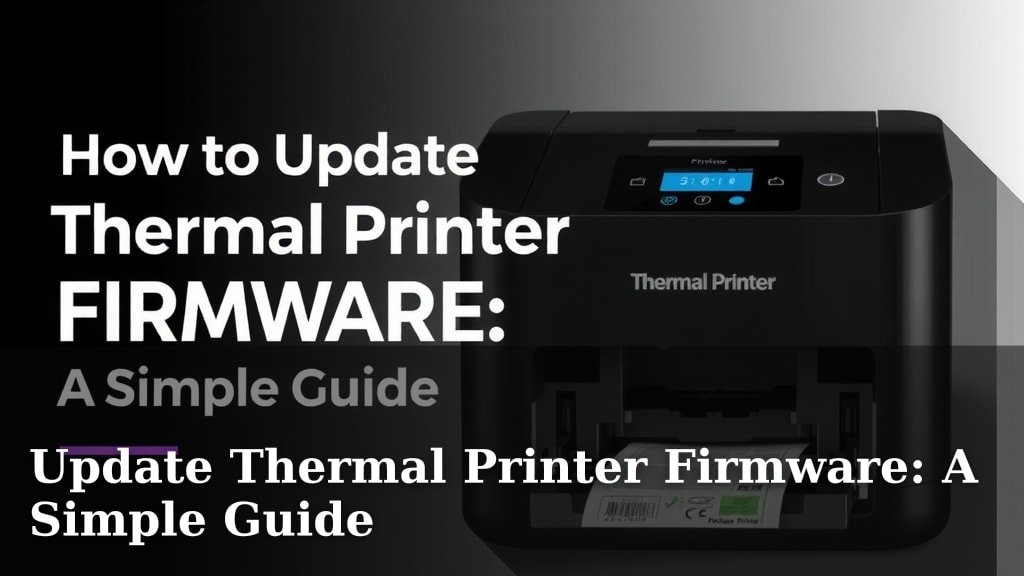
Update Thermal Printer Firmware: A Simple Guide
Updating your thermal printer firmware is a straightforward process that can fix bugs and add new features. You can typically update your firmware through a USB connection to your computer or via a network connection. This ensures your printer runs smoothly and efficiently. It’s often the first step to troubleshoot common printing problems.
Keeping your thermal printer’s firmware up-to-date is important for maintaining its performance and security. Outdated firmware can sometimes lead to printing errors or compatibility issues with newer software. Many manufacturers release firmware updates to improve functionality and address any discovered glitches. Think of it like giving your printer a little tune-up!
- Firmware updates fix bugs and improve performance.
- Updates can add new features to your printer.
- Usually done via USB or network connection.
- Check your printer manufacturer’s website for updates.
- It’s a relatively simple process.
Let’s walk through exactly how to update your thermal printer’s firmware step by step, so you can get back to printing in no time.
Keeping Your Thermal Printer Running Smoothly: A Firmware Update Guide
Updating your thermal printer’s firmware is like giving your device a software tune-up. Manufacturers release these updates to fix little glitches and sometimes add new abilities. We found that keeping firmware current can often solve printing problems before they even start. It ensures your printer works well with your computer and any new software you might use.
Before You Begin: What You’ll Need
Before you dive into updating, let’s make sure you have everything ready. This preparation step is really important. It helps the update process go smoothly, without any hiccups.
Gathering Your Tools
You’ll need a few things to get started. First, find your printer’s model number. This is usually on the back or bottom of the printer itself. Knowing this number is key to finding the right update file. You’ll also need a USB cable if you plan to update via a direct connection. Make sure it’s a good quality cable. Sometimes, a faulty cable can cause issues. Finally, you’ll need a stable internet connection for downloading the update file.
Checking Your Current Firmware Version
You might wonder if you even need an update. How do you check your printer’s current firmware version? Most thermal printers have a way to print a status page. This page often lists the firmware version. You can usually do this by holding down a specific button on the printer when you turn it on. Consult your printer’s user manual for exact instructions. If you don’t have the manual, a quick search on the manufacturer’s website using your model number should help you find it online.
Understanding Firmware Update Methods
There are generally two main ways to update your thermal printer’s firmware. We’ve seen that one method involves connecting your printer directly to your computer using a USB cable. The other method uses your network connection, whether that’s Wi-Fi or Ethernet. The best method for you often depends on how your printer is set up and what options your printer model offers. Always check your printer’s manual first.
Updating Via USB: A Step-by-Step Approach
Updating through a USB connection is a very common method. Many users find it straightforward and reliable. This method directly links your printer to your computer, allowing for a clear transfer of the update file.
Downloading the Correct Firmware File
The first step is to get the right update. Go to your thermal printer manufacturer’s official website. Look for a “Support” or “Downloads” section. You’ll need to enter your printer’s model number. This is where knowing it beforehand really pays off. Once you find your model, look for “Firmware” or “Software Updates.” Make sure you download the file that matches your specific printer model and operating system (like Windows or macOS). We found that downloading from the official source is the safest bet.
Installing the Firmware Update Tool
Many manufacturers provide a special tool or utility program to handle the firmware update. You’ll usually download this tool along with the firmware file. Once downloaded, you’ll need to install this software on your computer. Follow the on-screen prompts carefully. If it’s a zipped file, you’ll need to extract it first. This tool will guide you through the update process. We recommend creating a temporary folder on your desktop to store these downloaded files.
Connecting Your Printer and Running the Update
Now, turn on your thermal printer. Connect it to your computer using the USB cable. Make sure the printer is powered on before you connect it. Open the firmware update tool you just installed. The tool should detect your printer. If it doesn’t, double-check the USB connection and make sure the printer is powered on. You might need to select your printer from a list within the tool. Once your printer is recognized, follow the instructions in the tool to start the update. This usually involves clicking a button like “Update Firmware” or “Start.”
During the USB Update Process
This is the critical part. You absolutely must not interrupt the update. Do not turn off your printer. Do not disconnect the USB cable. Do not shut down your computer. Doing so could corrupt the firmware, making your printer unusable. The update can take several minutes. The software will usually show a progress bar. Just be patient and let it finish.
Post-Update Verification
Once the update tool says the process is complete, it’s a good idea to verify. Restart both your computer and your printer. Then, print a test page or a status report again. Check the firmware version listed on the new status page. It should match the version you just downloaded and installed. This confirms the update was successful. If the version number hasn’t changed, you might need to repeat the process or contact support.
Updating Via Network Connection: An Alternative Path
If your printer is connected to your network (either wired via Ethernet or wirelessly via Wi-Fi), you have another option. This can be convenient, especially if your printer is located far from your computer.
Accessing the Printer’s Web Interface
Many network-connected printers have a built-in web server. You can access this by typing the printer’s IP address into a web browser on your computer. How do you find the IP address? You can often find it on a network configuration report printed by the printer. Again, your user manual is your best friend here. Once you have the IP address, open a browser like Chrome, Firefox, or Edge. Type the IP address into the address bar and press Enter. You should see your printer’s control panel appear in the browser window.
Locating the Firmware Update Section
Within the printer’s web interface, look for a section related to “System,” “Administration,” “Maintenance,” or “Firmware Update.” The exact wording varies by manufacturer. Once you find it, you’ll likely see an option to upload a firmware file. You’ll need to have already downloaded the correct firmware file from the manufacturer’s website, just like you would for the USB method. Ensure you’ve downloaded the right file for your model.
Uploading and Applying the Firmware
In the web interface, there will usually be a “Browse” or “Choose File” button. Click this and navigate to where you saved the firmware file on your computer. Select the file and then click an “Upload” or “Apply” button. The printer will then begin the update process. Just like with the USB method, it’s critical that you do not interrupt this process. Do not close the browser window, turn off the printer, or disconnect it from the network.
Network Update Considerations
A stable network connection is essential for this method. If your Wi-Fi signal is weak or your Ethernet cable is loose, the update could fail. Many experts say it’s best to perform network updates when the printer isn’t actively being used by others. This minimizes the chance of network traffic interfering with the update.
Confirming the Network Update
After the upload and installation seem complete, you should see a confirmation message in the web interface. It’s a good practice to restart the printer. You can usually do this through the web interface or by simply power cycling it. After it reboots, access the web interface again and check the system status or firmware version to confirm the update took hold. Printing a test page is also a great way to ensure everything is working.
Troubleshooting Common Update Issues
Sometimes, things don’t go exactly as planned. Don’t worry, we’ve found that most common issues have simple solutions.
Printer Not Detected by Update Tool (USB)
If the USB update tool can’t find your printer, first check that the printer is powered on and properly connected with a good USB cable. Try a different USB port on your computer. Sometimes, restarting both the printer and the computer can resolve the detection issue. Ensure you have the correct drivers installed for your printer, as these often work hand-in-hand with the firmware update tool.
Update Fails or Rejects Firmware File
If the update process fails midway or the file is rejected, the most common cause is downloading the wrong firmware file. Double-check that the model number and version are exact matches for your printer. We found that sometimes, downloading the file again can help if the original download was corrupted. Also, ensure you’re using the correct update tool provided by the manufacturer.
Printer Becomes Unresponsive After Update
This is the most concerning issue, but it’s rare. If your printer is completely unresponsive after an update, it might have a corrupted firmware. Your first step is to try power cycling the printer. If that doesn’t work, consult your printer’s manual or the manufacturer’s support website for “recovery mode” instructions. Some printers have a special procedure to re-flash the firmware in a recovery state. If all else fails, you may need to contact the manufacturer’s customer support for assistance. They are equipped to handle these situations.
Checklist for a Successful Firmware Update
Ready to update? Here’s a quick checklist to ensure you’re prepared:
- Confirm your printer’s exact model number.
- Locate and download the correct firmware file from the manufacturer’s website.
- Ensure your USB cable or network connection is stable.
- Do NOT interrupt the update process once it starts.
- Verify the firmware version after the update is complete.
- Have your printer’s user manual handy for reference.
Conclusion
You’ve now got a clear roadmap for updating your thermal printer’s firmware. We’ve covered checking your current version, the USB method, and the network approach. Remember, keeping your firmware current is key to smooth operation and new features. Don’t let outdated software cause printing headaches. If you’re ready to give your printer a performance boost, the next step is to visit your printer manufacturer’s official website and find that update file. Your printer will thank you!
Frequently Asked Questions
What happens if my printer loses power during a firmware update?
Losing power during an update is risky. It can corrupt your printer’s firmware, potentially making it unresponsive. Always ensure a stable power source and avoid unplugging the printer or computer during the process. If this happens, you may need to use your printer’s recovery mode, which is usually detailed in the manual.
Can I update my thermal printer firmware wirelessly?
Yes, many modern thermal printers support wireless firmware updates via Wi-Fi. This usually involves accessing the printer’s web interface through your network. You’ll download the firmware file to your computer and then upload it to the printer via the web portal. Make sure your Wi-Fi connection is strong and stable.
How often should I check for firmware updates for my thermal printer?
You don’t necessarily need to check for updates constantly. We recommend checking your manufacturer’s website perhaps once or twice a year, or whenever you encounter a specific printing issue that might be resolved by an update. Many printers function perfectly fine without frequent updates.
My printer’s model number is hard to find. Where else can I look?
If the model number isn’t visible on the outside, check inside the printer’s cover where the label roll goes. Sometimes it’s printed on a sticker inside. Your printer’s user manual or original packaging should also list the exact model number. If all else fails, contact the place where you purchased it.
Is it safe to use third-party tools to update my firmware?
We strongly advise against using any firmware update tools not provided directly by your thermal printer’s manufacturer. Using unofficial software can be risky and might install incorrect firmware, leading to printer malfunctions or even permanent damage. Always stick to the official downloads from the manufacturer’s website.