Thermal Printer Specifications: A Complete Guide
Understanding thermal printer specifications can seem daunting, but it’s really about matching the right tech to your needs. We’ve found that focusing on key specs like print speed, resolution, and connectivity will help you choose the best printer for your business. Knowing these details means you won’t overpay or underperform. Let’s decode those specs so you can print with confidence.
Thermal printers are a workhorse for many industries, from retail receipts to shipping labels. When you’re looking at models, you’ll see terms like DPI, inches per second, and various interface types. We’ve researched these to help you understand what they really mean for your day-to-day operations. Getting the right specs ensures your printing is fast, clear, and hassle-free.
- Print speed: How fast your printer churns out labels or receipts.
- Resolution (DPI): How sharp and detailed your prints will be.
- Connectivity: How the printer talks to your computer or network.
- Durability: How well it holds up to your work environment.
- Media handling: What types and sizes of paper it can use.
Ready to make sense of all those numbers and acronyms? Below, we break down each thermal printer specification so you can pick the perfect one for your situation.
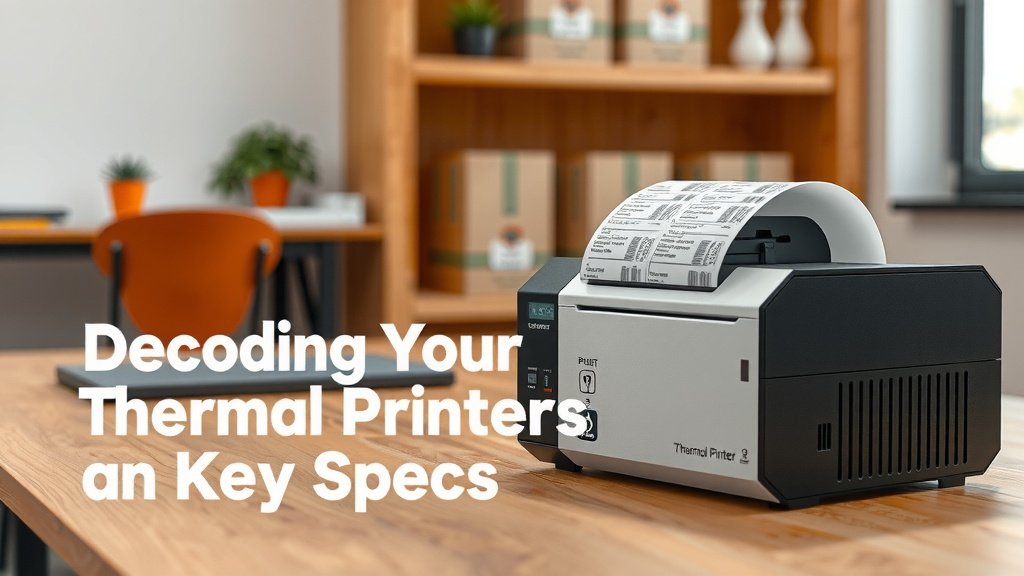
Decoding Your Thermal Printer’s Key Specs
Choosing the right thermal printer can feel like navigating a maze of technical terms. You want a printer that works hard for your business without costing a fortune. We’ve researched these specifications to help you understand what matters most. Let’s break down what those numbers and acronyms really mean for your daily printing tasks.
Understanding Print Speed: How Fast is Fast Enough?
When you’re busy, waiting for a slow printer is the last thing you need. Print speed tells you how quickly your thermal printer can produce labels or receipts. It’s usually measured in inches per second (ips). This number is super important for businesses that need to print a lot of items quickly.
What is Inches Per Second (ips)?
Think of ips as the printer’s jogging pace. A higher ips means your printer can keep up with your workflow. For example, a printer with 4 ips will print 4 inches of material every second. This might not sound like much, but it adds up fast when you’re printing hundreds of labels.
Matching Speed to Your Needs
What’s the right speed for you? It really depends on your business volume. Retail stores might only need 2-3 ips for occasional receipts. Shipping and logistics companies, however, might need 6 ips or more to handle a constant stream of labels. We found that most small to medium businesses are well-served by printers in the 4-5 ips range.
Print Resolution: Clarity is Key
The clarity of your prints directly impacts how easy they are to read. Print resolution, measured in dots per inch (DPI), tells you how much detail your printer can produce. Higher DPI means sharper text and clearer images. This is especially vital for barcodes and small text.
Understanding DPI
DPI is like the pixel density on your screen. More dots packed into a square inch mean a sharper image. Standard resolutions are often 203 DPI, but you can find printers with 300 DPI or even 600 DPI. If you’ve ever tried to scan a blurry barcode, you know why this matters!
Choosing the Right DPI for Your Application
For simple text and basic barcodes, 203 DPI is usually sufficient. Many experts suggest 203 DPI is the sweet spot for most general-purpose label printing. However, if you need to print small fonts, intricate graphics, or very dense barcodes, a higher resolution is a good idea.
For example, printing tiny serial numbers or detailed logos would benefit from 300 DPI. This higher resolution ensures that even the smallest details are crisp and legible. Some specialized applications might even require 600 DPI, but this is less common for everyday use.
Connectivity Options: How Your Printer Talks to Your Devices
How will your printer connect to your computer or network? This is where connectivity specs come in. You’ll see terms like USB, Ethernet, Wi-Fi, and Bluetooth. The right connection type ensures your printer integrates smoothly into your existing setup.
Common Connection Types Explained
USB: This is the most common and simplest connection. It’s like plugging in a mouse or keyboard. It’s great for single computers and straightforward setups. If you have one computer needing a printer, USB is usually your best bet.
Ethernet (LAN): This uses a network cable to connect your printer to your router or network. It’s ideal for multiple users sharing a printer on a local network. Many businesses find Ethernet offers a stable and reliable connection for shared printers.
Wi-Fi: Wireless connectivity means you can place your printer anywhere within your Wi-Fi range without cables. This offers flexibility in placement. Just make sure you have a strong Wi-Fi signal where you plan to put the printer.
Bluetooth: This is a short-range wireless connection, often used for mobile devices like tablets or smartphones. It’s handy for on-the-go printing, like in a warehouse or a mobile sales environment.
Choosing the Best Fit for Your Workflow
Think about where your printer will live and who will use it. For a single workstation, USB is usually fine. If multiple people need access, Ethernet or Wi-Fi are better choices. Many printers today offer multiple connectivity options, giving you added flexibility. We found that businesses often benefit from printers with both USB and Ethernet for backup or future needs.
Durability and Environment: Built to Last
Where will your printer be working? If it’s in a clean office, almost any printer will do. But if it’s in a dusty warehouse, a busy kitchen, or a workshop, you need a printer that can handle the rough and tumble. Durability specs often refer to the printer’s resistance to dust and water, known as its IP rating.
Understanding IP Ratings
An IP rating has two numbers. The first is for dust protection, and the second is for water protection. For example, IP54 means it has good protection against dust and splashing water. Printers designed for harsher environments will have higher IP ratings. Many industry standards suggest IP54 or higher for demanding settings.
What to Look For in Tough Environments
If your printer will be in a potentially dusty area, look for models with sealed components. For locations where spills might occur, water-resistant casing is a big plus. We found that investing in a more rugged printer upfront can save you a lot on repairs and replacements down the line. Consider the expected lifespan and warranty as well.
Media Handling: What Your Printer Can Feed On
Not all thermal printers use the same paper. Media handling specs tell you about the types, widths, and thicknesses of labels or receipts your printer can use. This includes the diameter of the roll and the core size.
Label Width and Roll Size
Printers have a maximum media width they can handle. This is often listed in inches or millimeters. Make sure the printer can accommodate the width of the labels or receipts you commonly use. Also, consider the maximum outer diameter of the label roll your printer can accept. A larger diameter means you’ll change rolls less often.
Types of Thermal Media
There are two main types of thermal printing: direct thermal and thermal transfer.
- Direct Thermal: Uses heat-sensitive paper. No ink or ribbon is needed. Great for receipts and shipping labels that don’t need to last for years. Think of it like a special paper that turns black when heated.
- Thermal Transfer: Uses a ribbon and special thermal transfer labels. This creates more durable, long-lasting prints suitable for product identification or harsh conditions. The ribbon acts like an ink cartridge.
We found that most basic receipt printers are direct thermal. For more durable labels, thermal transfer is the way to go. Always check that the printer you choose supports the type of media your application requires.
A Quick Checklist for Choosing Your Printer
To help you decide, run through this quick checklist:
- Speed: Do you need fast printing for high volume?
- Resolution: Will you print small text or complex barcodes?
- Connectivity: How will it connect to your computer or network?
- Durability: Does it need to withstand a tough environment?
- Media: Does it support the label sizes and types you need?
- Budget: Does it fit within your financial plan?
Conclusion
You’ve now got a solid grasp on the key thermal printer specifications. We’ve walked through print speed, resolution, connectivity, durability, and media handling. Understanding these details helps you avoid common pitfalls and choose a printer that perfectly fits your business needs. You’re ready to move beyond guesswork and make a confident purchase. Your next step is to review your current printing demands and match them with the specs you’ve learned about today. Happy printing!
Frequently Asked Questions
What is the difference between direct thermal and thermal transfer printers?
Direct thermal printers use heat-sensitive paper and don’t require an ink ribbon. They’re great for receipts and temporary labels. Thermal transfer printers use a ribbon to create more durable, long-lasting prints on special labels, ideal for barcodes and product identification.
How do I know if I need a higher resolution (DPI) printer?
If you frequently print small text, detailed graphics, or dense barcodes, you’ll benefit from a higher DPI. For most standard receipts and basic labels, 203 DPI is sufficient. We found that 300 DPI is a good upgrade for better clarity on finer details.
Can I connect a thermal printer wirelessly if it only has a USB port?
Generally, no. If a printer only lists USB connectivity, it’s designed for a wired connection. Some models offer multiple options, including Wi-Fi or Ethernet, but you need to check the specifications carefully before purchasing if wireless is a must-have.
What does an IP rating like IP54 mean for a printer?
An IP rating tells you how well the printer is protected against environmental factors. For IP54, the ‘5’ means it has good protection against dust ingress, and the ‘4’ means it’s protected against splashing water. This rating is important for printers used in less-than-ideal conditions like warehouses or kitchens.
How do I choose the right print speed for my business?
Your print volume dictates the speed you need. Low-volume users like small retail shops might be fine with 2-3 inches per second. Businesses printing many labels daily, such as shipping operations, should look for 5-6 inches per second or higher to keep up with demand.