How to Test Your Thermal Printer: A Quick Guide
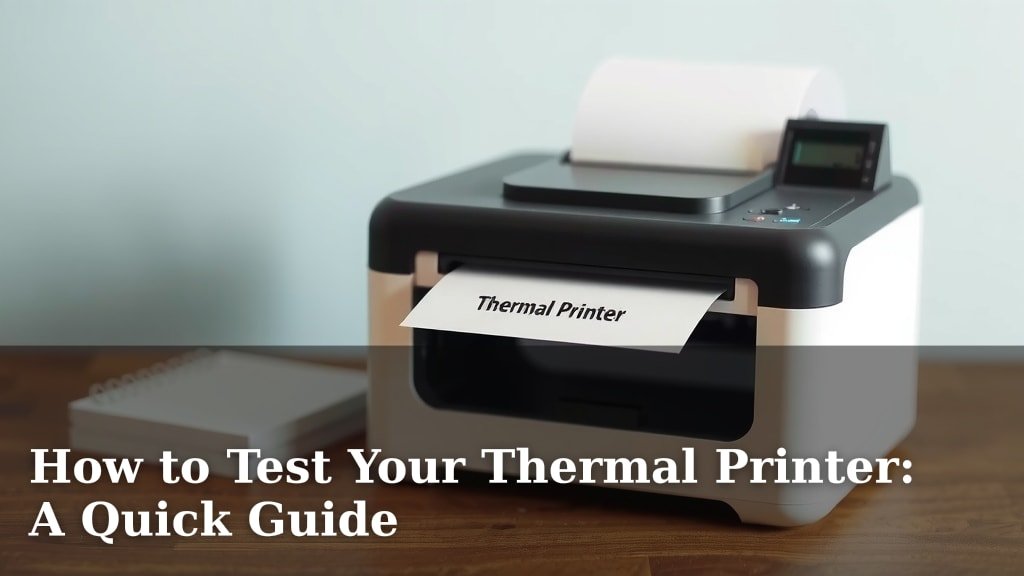
Testing a thermal printer is pretty straightforward. You can easily test your thermal printer by printing a test page or a sample label. This will quickly show you if it’s printing clearly and correctly. We’ve found this is the fastest way to confirm your printer is working as expected.
When your thermal printer isn’t performing well, you might see faded prints or blank lines. These issues often stem from simple causes like a dirty print head or incorrect settings. Knowing how to perform a basic test ensures you can catch problems early and keep your operations running smoothly. It’s a key part of printer maintenance.
- Print a test page or sample label.
- Check for clear, legible output.
- Look for faded areas or missing lines.
- This helps confirm your printer is ready.
Let’s walk through exactly how to run these simple tests step by step, so you can get your printer back to printing perfectly.
“`htmlRunning a Quick Check on Your Thermal Printer
So, your thermal printer isn’t cooperating? We’ve all been there! A properly functioning thermal printer is essential for everything from shipping labels to receipts. We know that when it hiccups, it can cause headaches. Thankfully, testing it is usually a simple process. We found that running a basic test is the quickest way to see if the printer itself is the problem or if it’s something else.
The core idea behind testing is to isolate the printer and see if it can produce a clear, readable output on its own. This helps rule out issues with your computer, software, or the data being sent to the printer. We’ll guide you through the most common and effective tests.
Performing the Self-Test: Your Printer’s Built-in Check
Most thermal printers have a built-in self-test function. This is like the printer taking its own temperature. It prints a pre-programmed page directly from the printer’s memory, bypassing your computer entirely. We found this is the most telling test for hardware issues.
What the Self-Test Shows You
This test is designed to show you if the printer’s mechanical parts and internal components are working correctly. You’ll typically see information like the printer’s model number, firmware version, and current settings. The key is to look for clarity and consistency.
Looking for Print Quality Issues
When the self-test page prints, examine it closely. Are the characters sharp and dark? Or are they faded, smudged, or missing altogether? We found that any blurriness or blank spots on this page strongly suggests a problem with the printer hardware itself. Common culprits include a dirty or damaged print head.
How to Initiate the Self-Test
The exact method for starting a self-test varies by manufacturer and model. You’ll often need to press and hold a button (like the feed or power button) while turning the printer on. Some printers might have a specific sequence of button presses. We recommend checking your printer’s user manual for precise instructions. If you don’t have the manual, a quick online search for your printer model and “self-test” usually yields the answer.
For example, many Zebra printers require you to press and hold the feed button as you power them on. Brother printers might have a different approach. We found that it’s worth a few minutes of research to get this right.
Interpreting the Self-Test Results
If the self-test page prints perfectly, that’s great news! It means the printer’s core functions are likely sound. This suggests the issue you’re experiencing might be with the computer connection, drivers, or the software you’re using. If the test page shows problems, though, it points directly to the printer.
Testing with a Sample Label or Document
Once you’ve ruled out major hardware faults with the self-test, the next step is to try printing something specific from your computer. This test confirms that the printer can communicate with your system and print actual data. We found this helps identify driver or software-related issues.
Printing from Printer Properties/Settings
Most operating systems allow you to print a test page directly from the printer’s properties. This is a common and effective method. We found that this bypasses your application software, sending a standard test pattern directly to the printer driver.
Steps for Windows Users
To do this on Windows, go to your Control Panel, then find “Devices and Printers” (or “Printers & Scanners” in newer versions). Right-click on your thermal printer icon. Select “Printer properties” or “Printing preferences.” Look for a button that says “Print Test Page.” Click it. We found this is a reliable way to see if the driver is communicating.
Steps for Mac Users
On a Mac, you’ll go to System Preferences, then “Printers & Scanners.” Select your printer from the list. You might need to click “Options & Supplies” or similar. While macOS doesn’t always have a direct “Print Test Page” button like Windows, you can achieve a similar result by opening a simple text document (like in TextEdit), typing a few words, and printing it. We found this confirms basic printability.
Using Label Design Software for Testing
If you use specific software to design your labels (like Bartender, Loftware, or even a built-in POS system), try printing a simple label design from there. This test is more comprehensive as it involves your actual workflow.
Create a very basic label – perhaps just your company name and address. Keep the design simple. Avoid complex graphics or fonts for this initial test. We found that simplicity reduces variables. Then, send this simple label to the printer. Does it come out clear and correct?
What to Look For in These Tests
As with the self-test, scrutinize the output. You’re looking for:
- Clear, dark text and lines: Is everything legible?
- Proper alignment: Are the elements where they should be?
- No missing sections: Are there gaps or missing parts of the print?
- Correct colors (if applicable, though most thermal printers are monochrome)
Common Issues and What They Mean
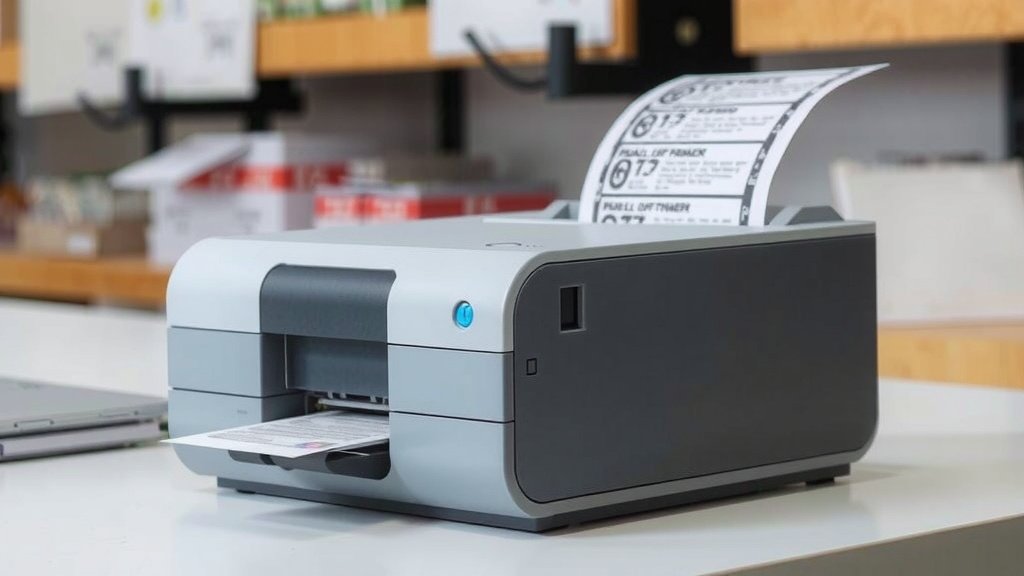
When your tests reveal problems, it helps to know what might be causing them. We’ve compiled some common issues and their likely sources based on testing outcomes.
Faded or Light Printing
This is one of the most frequent complaints. If your self-test page is faded, it often means the print head needs cleaning or is nearing the end of its lifespan. If only test pages from your computer are faded, it could be a driver setting that’s set too light, or perhaps the paper isn’t the correct type for your printer. Many experts say using the wrong kind of thermal paper can cause poor print quality (Thermal Printing Association).
Blank Lines or Gaps
Recurring white lines running through your printouts usually indicate a dirty print head. Tiny debris can block the heating elements. Sometimes, a damaged print head can also cause this. We found that a thorough cleaning often resolves this, but persistent lines might mean replacement is needed.
Smudged or Blobby Text
This could be due to a dirty platen roller or print head. If the printer is too hot, it can also cause ink (from the paper coating) to melt unevenly. We’ve also seen this happen if the label stock isn’t compatible with the printer’s temperature settings.
Printer Not Responding At All
If you can’t even get a self-test to print, or the printer shows no signs of life when you try to power it on, check the power cable and power source. If those are fine, it could be a more serious internal hardware failure. Sometimes, a printer driver crash can make the printer appear unresponsive, so testing the self-test is key here.
A Quick Checklist for Your Thermal Printer Test
To make sure you cover all the bases, here’s a handy checklist:
- [ ] Perform the printer’s built-in self-test.
- [ ] Analyze the self-test printout for clarity and completeness.
- [ ] Print a test page from your operating system (Windows or Mac).
- [ ] Observe the output for any fading, lines, or smudges.
- [ ] If using label software, print a simple test label.
- [ ] Compare results: does the issue appear in all tests or just some?
By following these steps, you can effectively test your thermal printer and pinpoint potential issues. This helps you take the right action, whether it’s a simple cleaning or reaching out for professional support.
“`Conclusion
You’ve learned how to test your thermal printer effectively, covering both built-in self-tests and system-level printouts. Remember, a clear self-test page points to computer or driver issues, while a flawed one signals a printer hardware problem. By consistently performing these simple checks, you can catch printing problems early. Don’t wait for a critical moment to discover an issue. Make it a habit to run a quick test print regularly to keep your thermal printer in top shape and ensure your operations run smoothly.
Frequently Asked Questions
How often should I test my thermal printer?
We recommend testing your thermal printer at least once a month, or more frequently if you use it heavily. This regular check ensures you catch any potential issues before they disrupt your workflow. It’s a small step that saves a lot of potential headaches.
What if my self-test prints fine, but computer prints are bad?
If the self-test is clear but computer prints are poor, the problem likely lies outside the printer itself. We’ve found that this often means checking your printer drivers for corruption or outdated versions, or verifying the connection between your computer and the printer is secure.
Can I test a wireless thermal printer differently?
Testing a wireless thermal printer follows the same principles, but you’ll focus more on the network connection. Ensure your printer is connected to the Wi-Fi network and try printing a test page or label from a device on the same network. We found that checking the network status lights on the printer is also a good first step.
What does it mean if my thermal printer makes grinding noises?
Grinding noises usually indicate a mechanical issue within the printer. This could be debris caught in the gears or rollers, or a component that’s misaligned. We suggest checking for any visible obstructions first, but persistent noises may require professional service.
Is there a way to test print quality without using special paper?
Yes, the built-in self-test is designed to work with the printer’s internal capabilities, not external paper types. If the self-test page prints clearly, it shows the printer’s hardware is functioning correctly. Any issues you see on the self-test are related to the printer itself, regardless of the paper you use for regular printing.